

Applicable Models
· Jeton AC1200 Air
· Jeton AC1300 Air, Jeton AC1300 Air BK
· Jeton AX3000 Air, Jeton AX3000 Air BK
· Jeton AX3000 Pro
· Jeton AX3000 Core
Overview
By default, the router automatically detects which port the Internet cable is plugged into. Setting a fixed WAN port solves the case when auto-detection picks the wrong port after you move the cable, or when your ISP requires the connection in a specific port — the remaining ports keep working as regular LAN.
Step 1
Go to [Advanced Mode].
For detailed steps, please check How to enter the Advanced mode.
Step 2
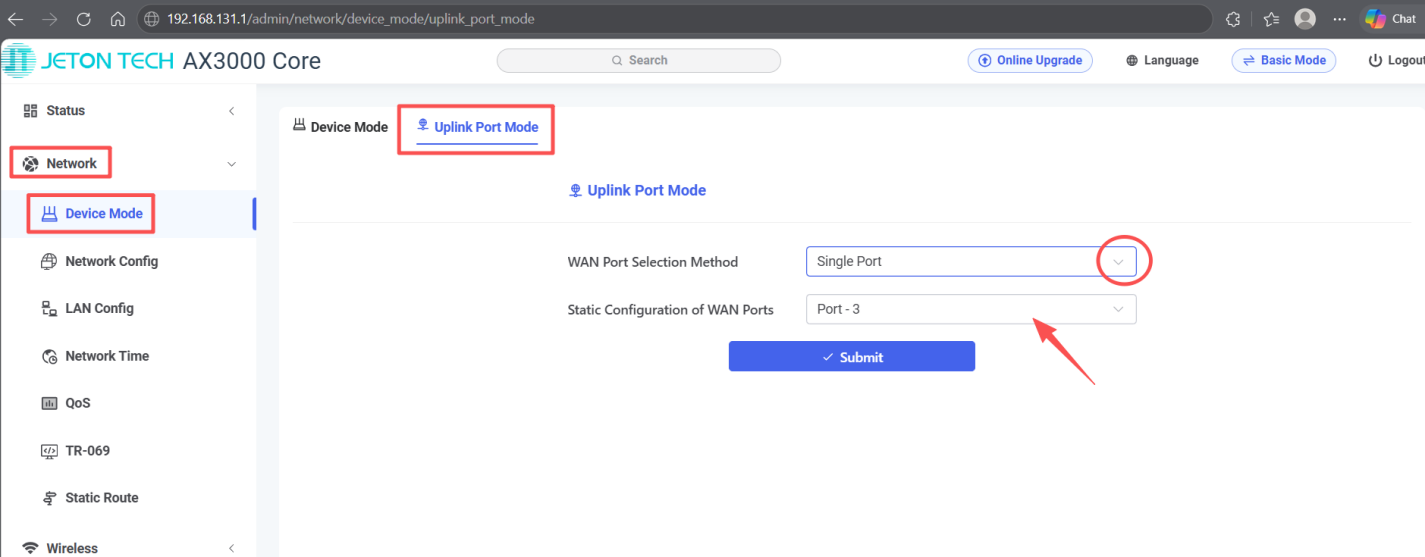
Open [Network] → [Device Mode] → Uplink Port Mode.
Step 3
Set WAN Port Selection Mode to Single Port.
In Static WAN Configuration, specify the port number where the provider cable is connected.
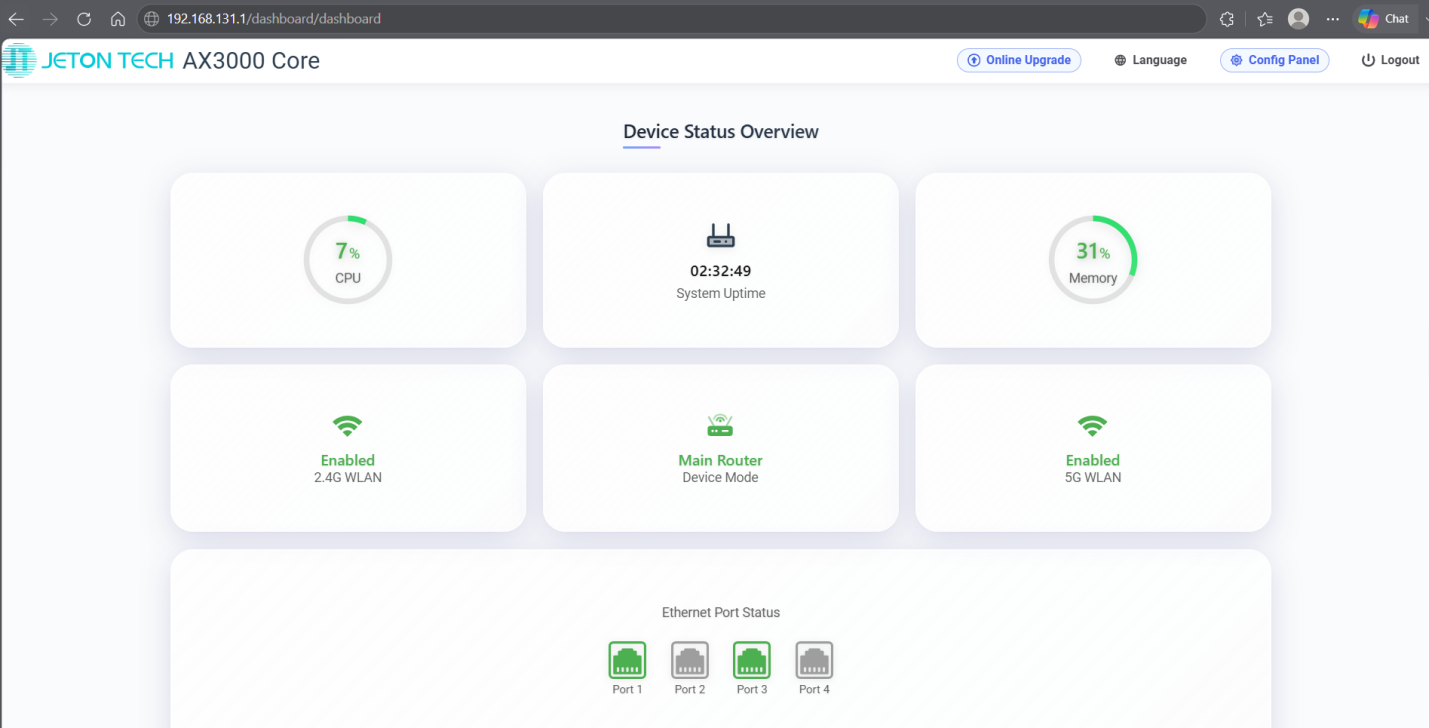
Note: Ports are counted from left to right. You can also verify this on the dashboard.
Step 4
Click the Submit button.