
Applicable Models
· Jeton AC1200 Air
· Jeton AC1300 Air, Jeton AC1300 Air BK
· Jeton AX3000 Air, Jeton AX3000 Air BK
· Jeton AX3000 Pro
· Jeton AX3000 Core
Overview
The configuration file contains all router settings in one file. Export it to keep a safe copy of your configuration or to transfer the settings to another router and restore them in a couple of clicks.
Step 1
Go to [Advanced Mode].
For detailed steps, please check How to enter the Advanced mode.
Step 2 Export Configuration File
Open [Management] → [Backup And Recovery] → Export Configuration File.
*If a warning appears, click OK to download the settings file.
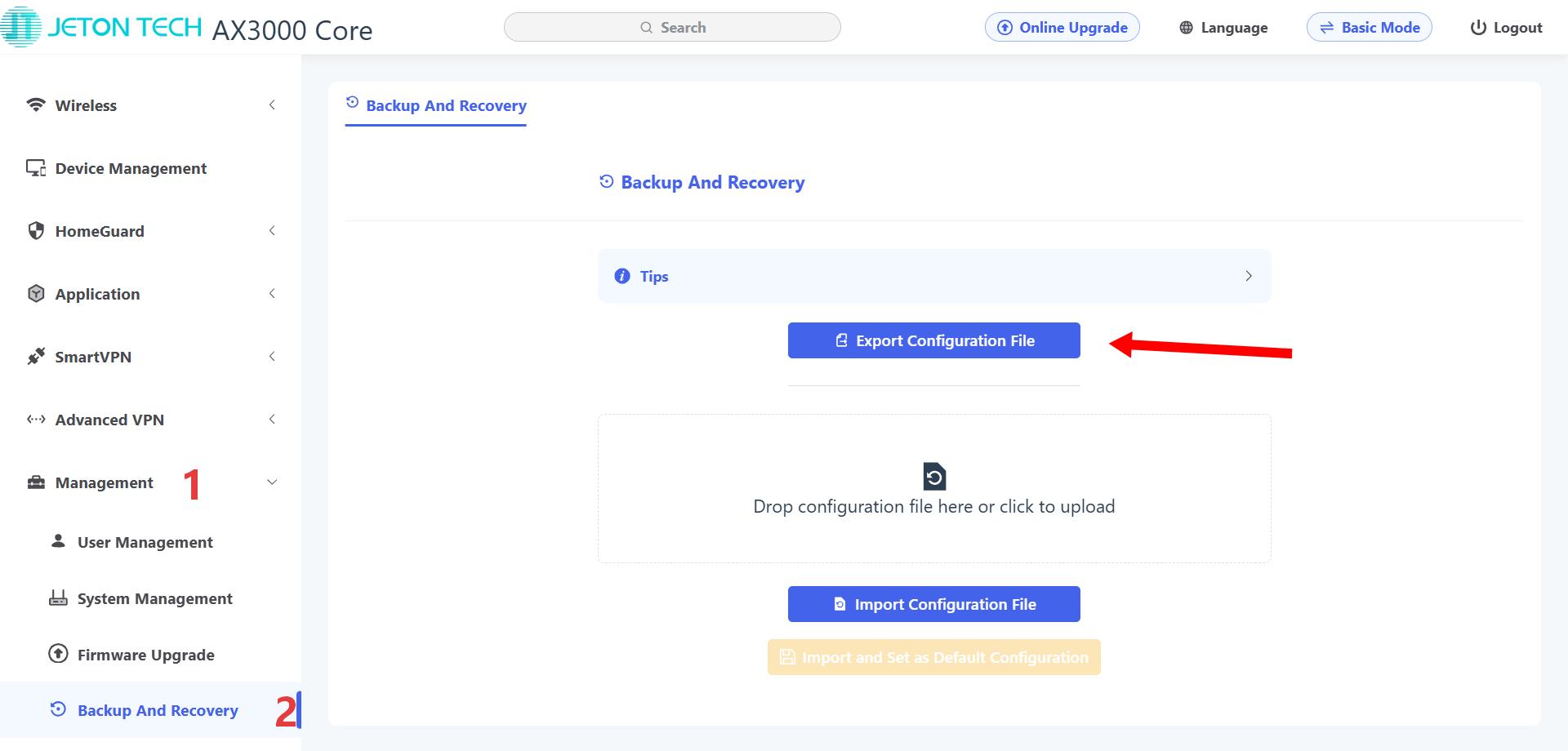
You will get a .tar file named after the router model and date. For example: Backup-Jeton_AX3000_Core-2026-09-23.tar
Step 3 Import Configuration File
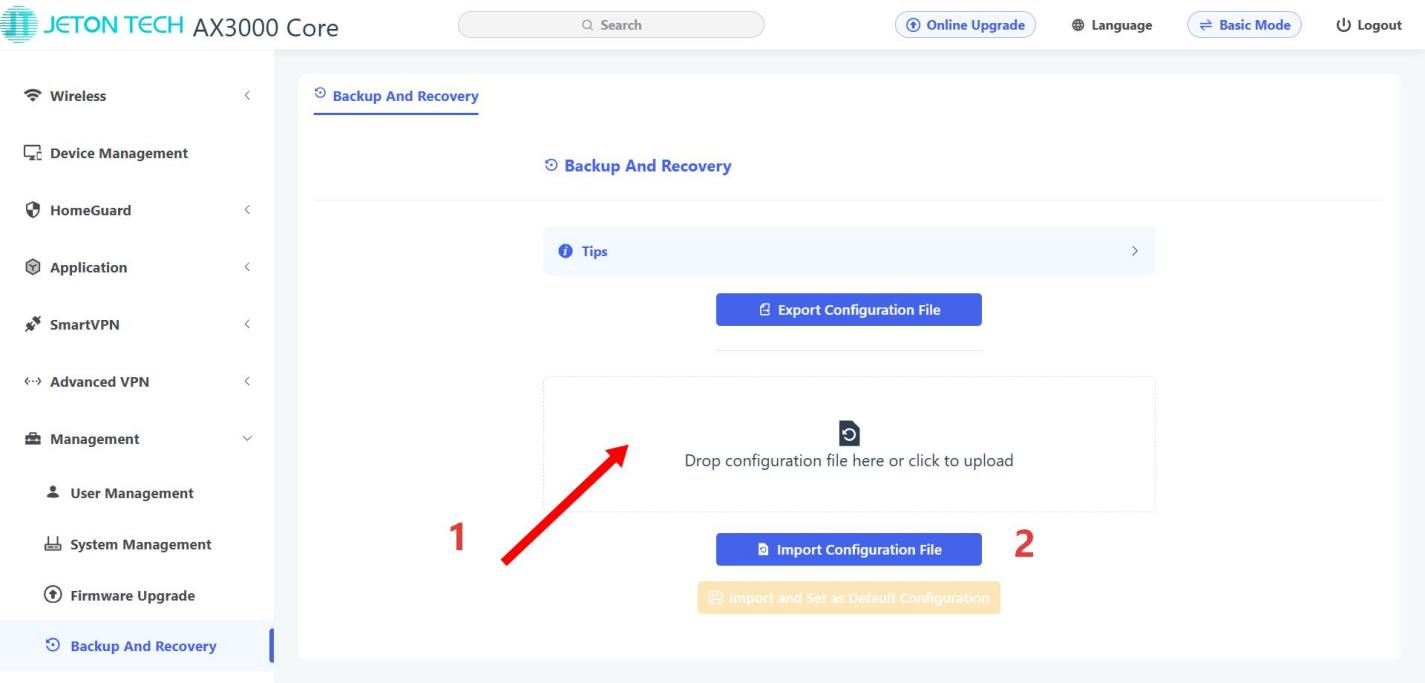
You can import the .tar file into the marked position and click Import Configuration File.
You will see a note indicating that the configuration has been uploaded successfully.
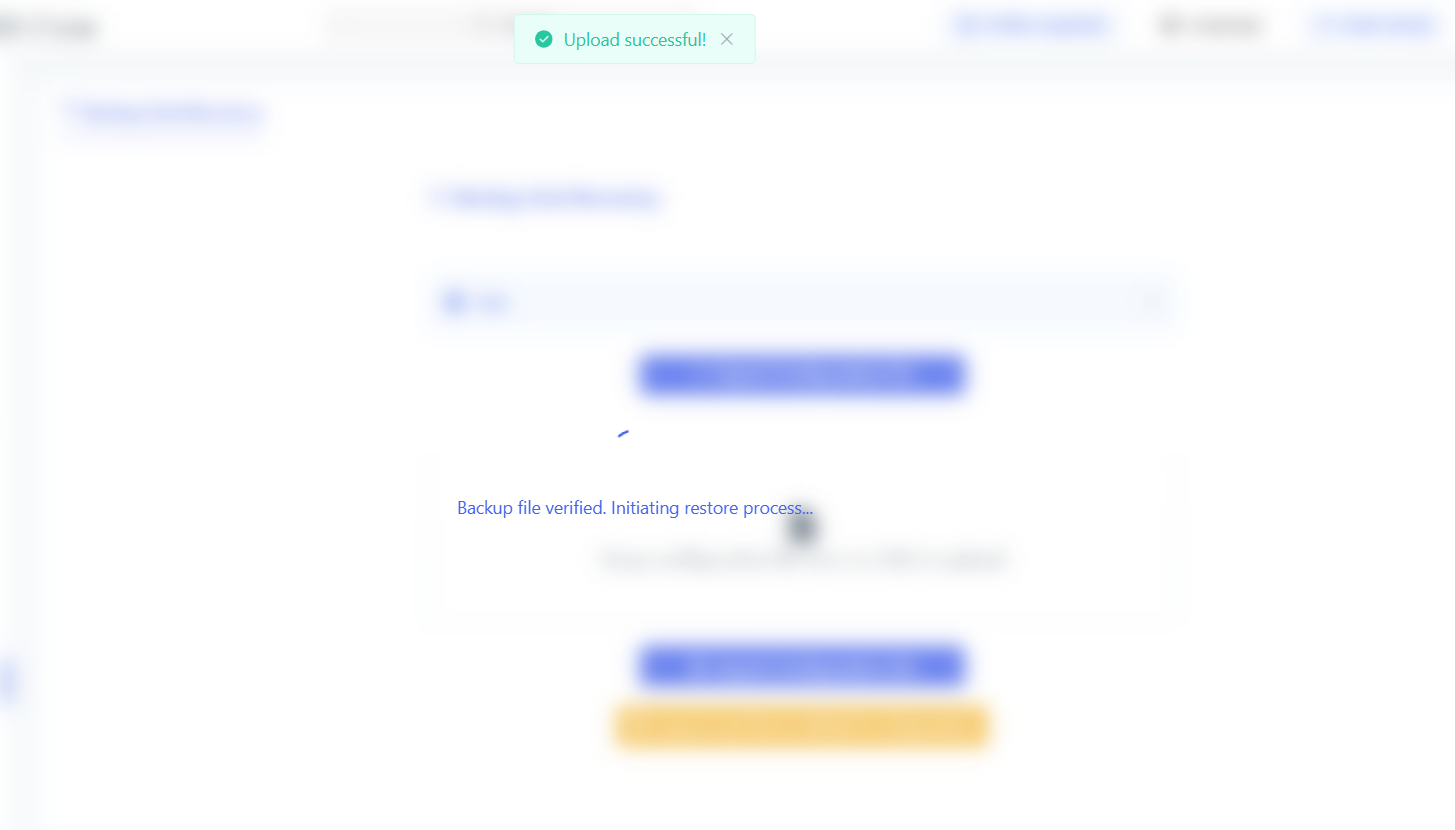
Step 4 Configuration Completed
After the configuration is completed, the router will reboot automatically and the web page will redirect to the login page. Note: Do not manually power off the router or reset it to factory settings during this process.
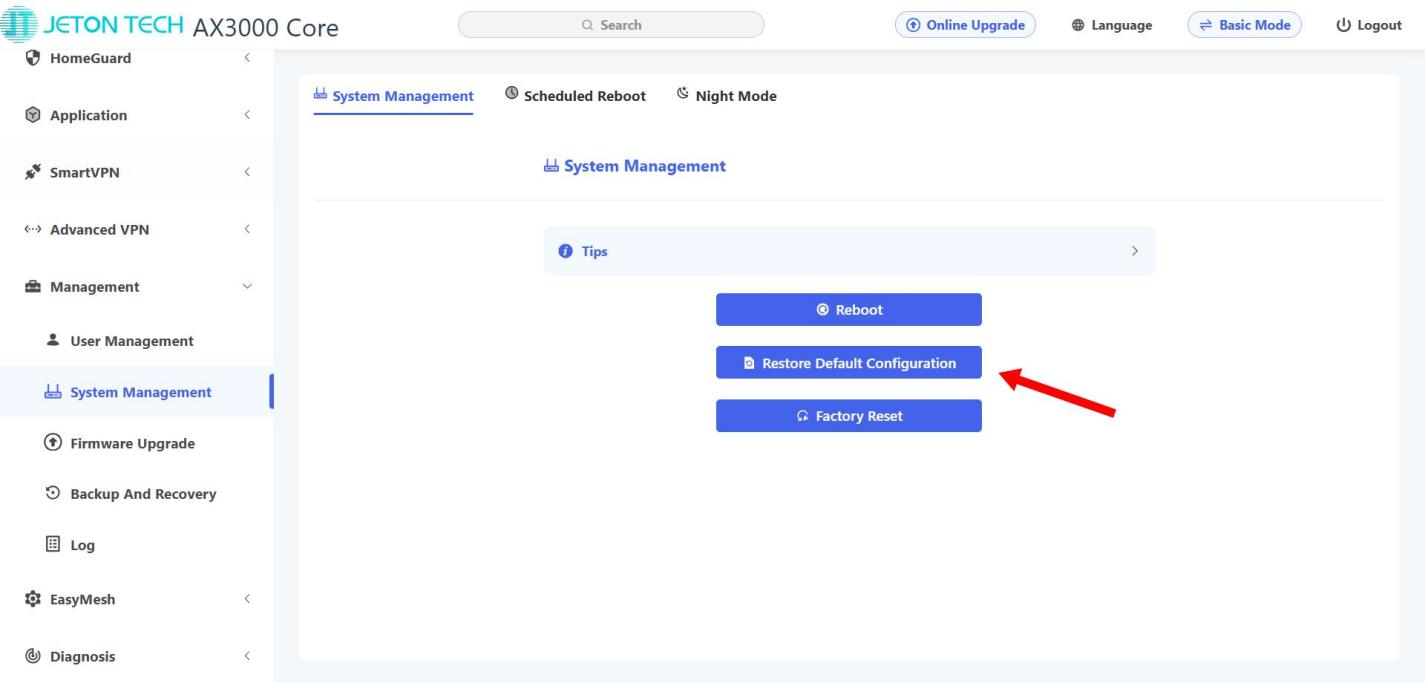
Step 5 Restore Default Configuration
Import the .tar file and click Import and Set as Default Configuration.
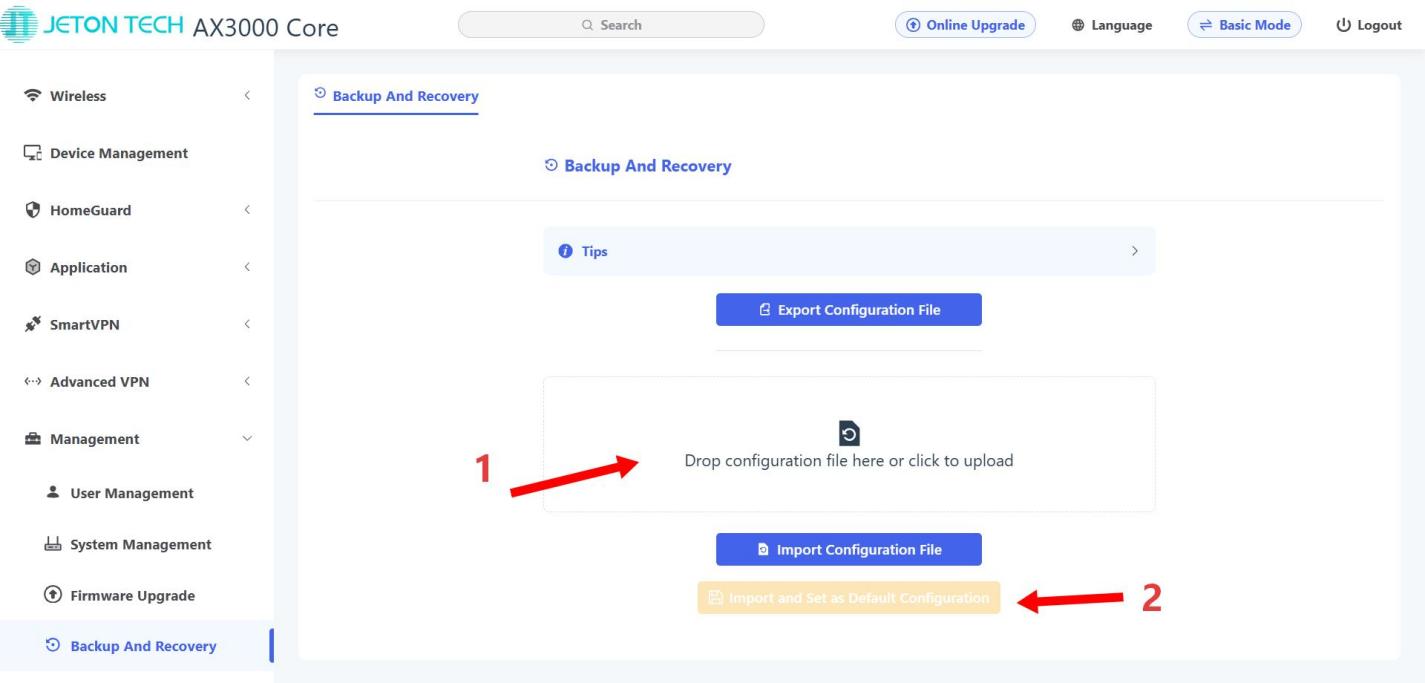
Wait for the router configuration to be completed.
Then go to [Management] → [System Management], click Restore Default Configuration, and the router will be restored to the state of your default configuration.