

Applicable Models
· Jeton AC1200 Air
· Jeton AC1300 Air, Jeton AC1300 Air BK
· Jeton AX3000 Air, Jeton AX3000 Air BK
· Jeton AX3000 Pro
· Jeton AX3000 Core
Overview
Manual update lets you install a firmware file yourself. It is needed when the automatic update is unavailable — for example, the router has no Internet access — or when you want to install or roll back to a specific version.
Step 1
Go to [Advanced Mode].
For detailed steps, please check How to enter the Advanced mode.
Step 2
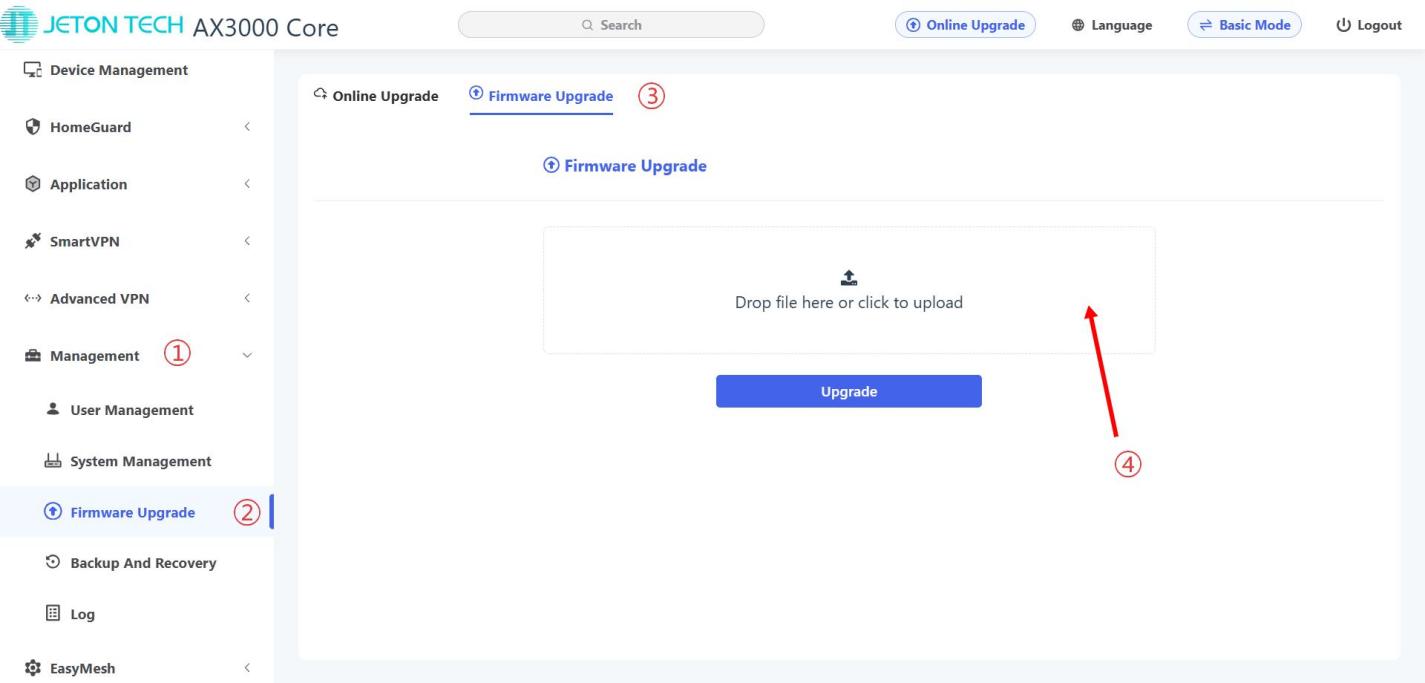
Open [Management] → [Firmware Upgrade] → Firmware Upgrade.
Step 3
Click the Drop file here or click to upload area and select the .bin file on your device, or drag the previously downloaded firmware file into this area.
For how to download firmware from Jeton Tech website, pls check this article:
How to download firmware from the Jeton Tech official website
Note: The firmware file downloaded from the website comes as an archive and must be extracted first.
Step 4
Click the Update button and wait for the process to complete. The router may reboot.
Once the upgrade is complete, you will need to re-enter your login password.
Step 5
Note:
It is recommended to perform a factory reset to ensure that the new features and pages take effect.
Don’t manually reset to factory defaults during the upgrade process.