
Applicable Models
· Jeton AC1200 Air
· Jeton AC1300 Air, Jeton AC1300 Air BK
· Jeton AX3000 Air, Jeton AX3000 Air BK
· Jeton AX3000 Pro
· Jeton AX3000 Core
Overview
The initial setup wizard connects your router to the Internet and creates your Wi-Fi network: it detects the WAN connection type and lets you set your own Wi-Fi name and password. Run it once when you install the router for the first time or after a factory reset — all other features become available afterwards.
Step 1
Connect the router to a power outlet using the included power adapter.
Connect your device (PC or smartphone) to the router via an Ethernet cable or Wi-Fi.
It is recommended to connect the router and the PC via a cable, which provides a more stable connection.
Step 2
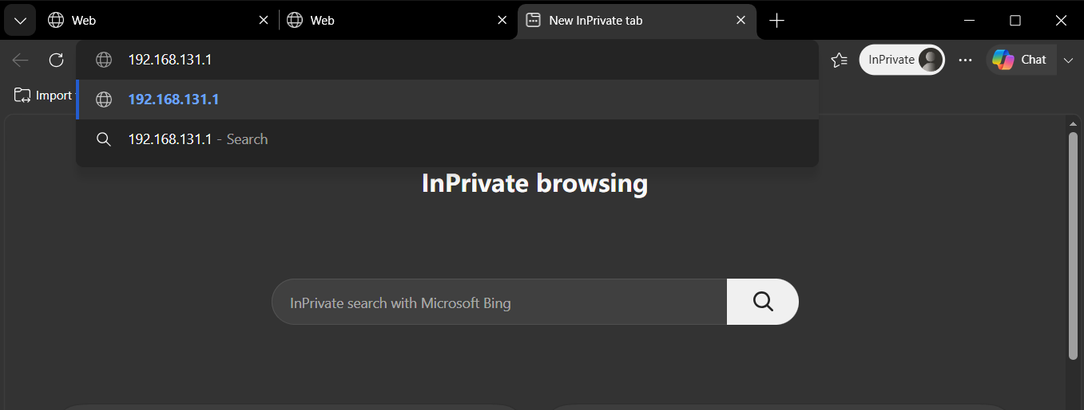
Open a browser (such as Microsoft Edge, Google Chrome, Safari), enter the router’s IP address (192.168.131.1 by default) into the address bar, then press Enter.
Step 3
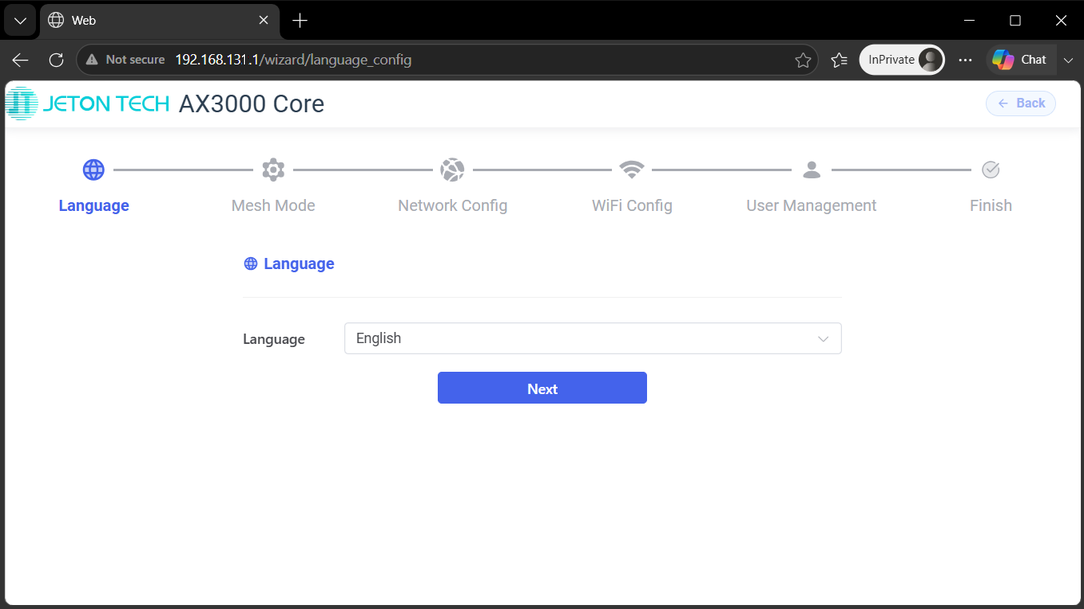
Select your language.
Step 4
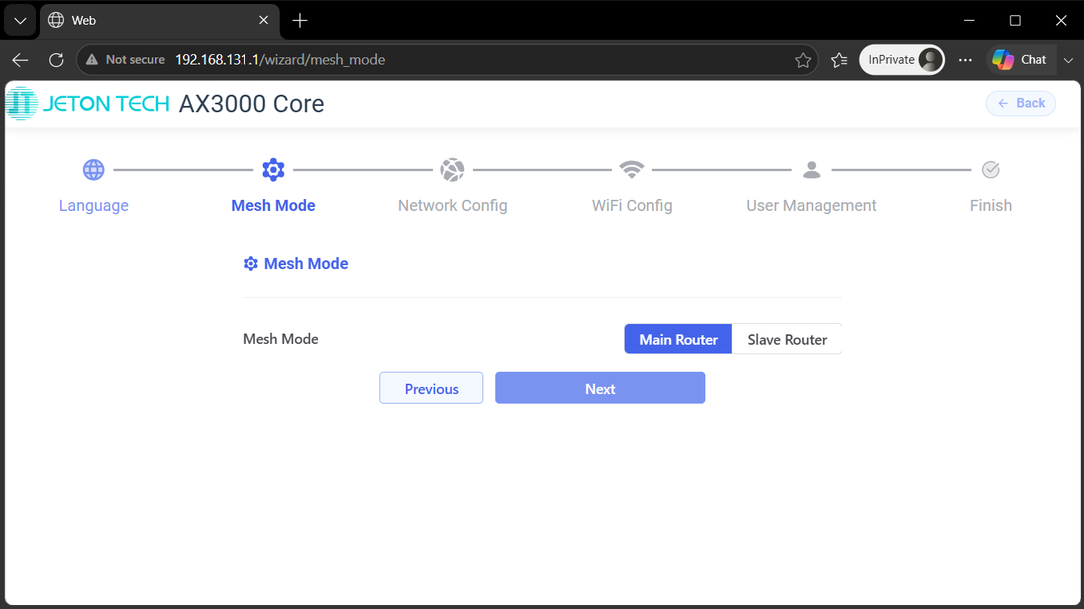
In the “Mesh Mode” section, select “Main Router” and click “Next”.
If you need to set up the device as a satellite router, refer to the following article:
How to set up an EasyMesh network
Step 5
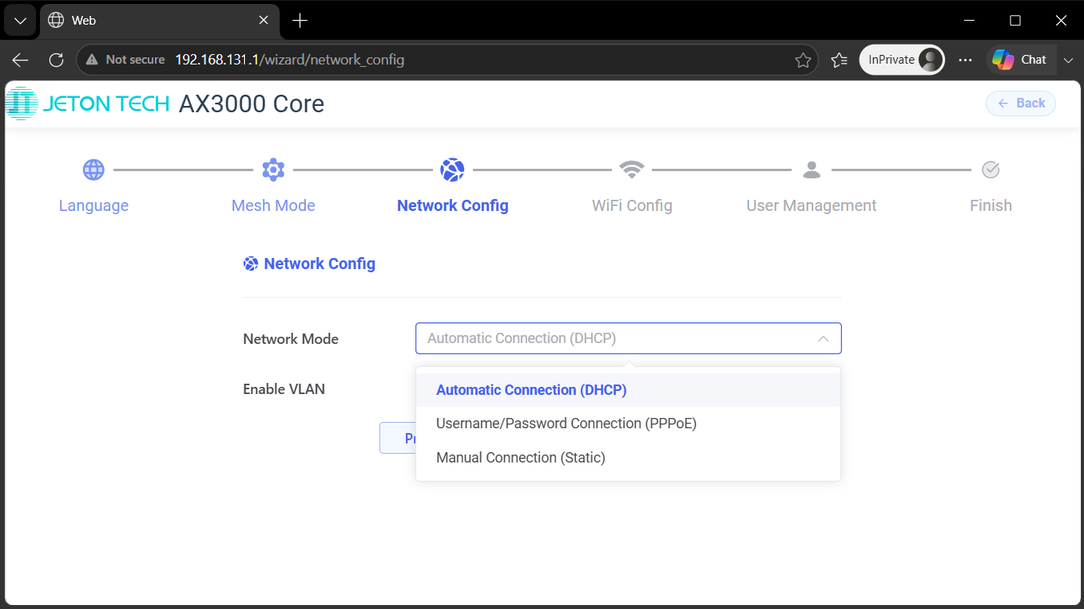
In the “Network Config” section, select “Automatic Connection (DHCP)” and click “Next”.
Note: If your connection uses a different type, contact your Internet service provider (ISP) for help.
Step 6
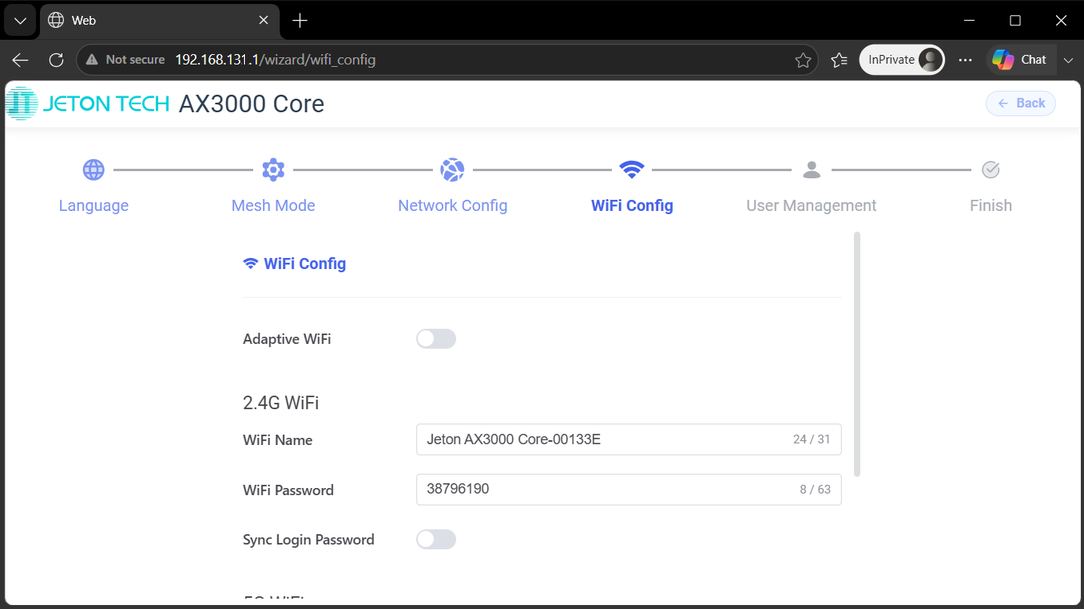
In the “WiFi Config” section, set a unique network name (SSID) and a password, then click “Next”.
Note: Adaptive WiFi combines the 2.4 GHz and 5 GHz networks and automatically switches between the bands for the best performance.
“Sync Login Password” – sets the administrator password for the web interface equal to the Wi-Fi password and skips the next setup step.
Step 7
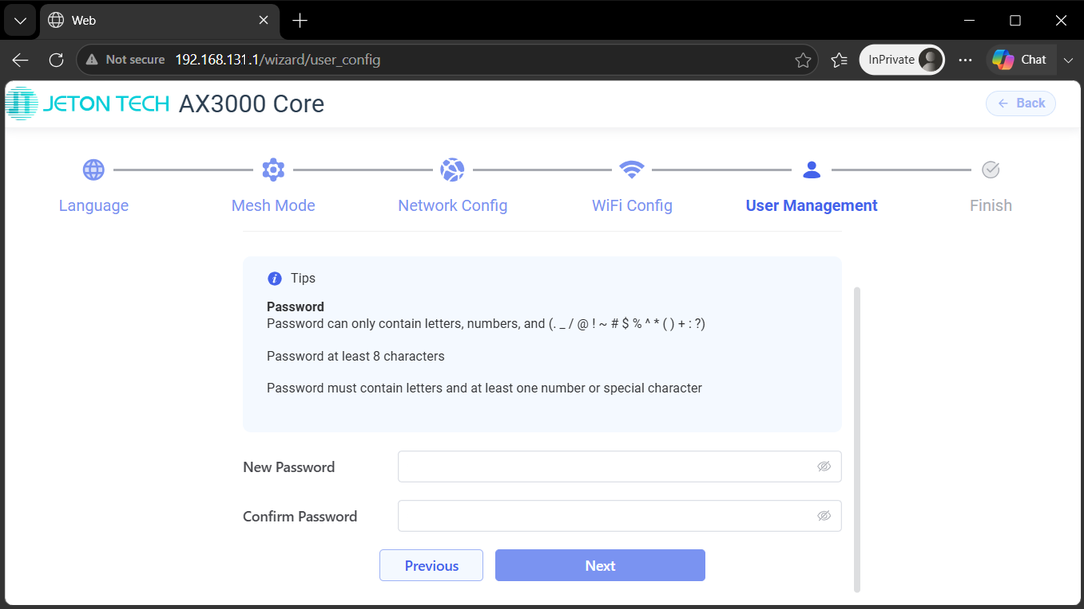
In the “User Management” section, set a unique administrator password for the web interface, then click “Next”.
Step 8
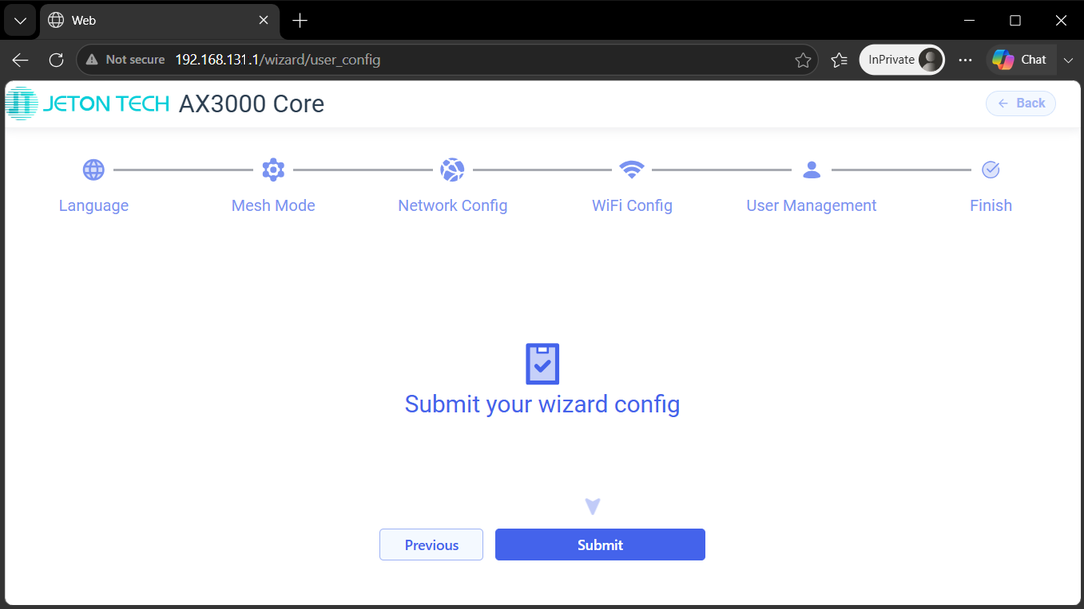
Click “Submit” to complete the setup.