

Applicable Models
· Jeton AC1200 Air
· Jeton AC1300 Air, Jeton AC1300 Air BK
· Jeton AX3000 Air, Jeton AX3000 Air BK
· Jeton AX3000 Pro
· Jeton AX3000 Core
Overview
The EasyMesh feature combines two or more routers into a single Wi-Fi network with one name and one password. Client devices switch to the strongest router automatically as you move around the house, eliminating dead zones in large apartments, houses and offices.
Preparation
Before you start, you will need:
Two or more Jeton Tech routers with EasyMesh support.
One of them will be the main router connected to the Internet; the other(s) will act as satellite router(s) to extend the network.
Setup
The easiest way to configure it is through the web interface in a browser. Connect your computer to the router via Wi-Fi or an Ethernet cable and enter the router’s IP address (192.168.131.1).
Step 1: Set up the main router.
This is the primary router that will manage the whole Mesh network.
Open the web interface. On the first login, the Quick Setup wizard will help you set up the Internet connection and the name (SSID) and password of your main Wi-Fi network. Select Main Router in the Mesh setup menu.
Finish the initial setup and make sure the Internet connection works.
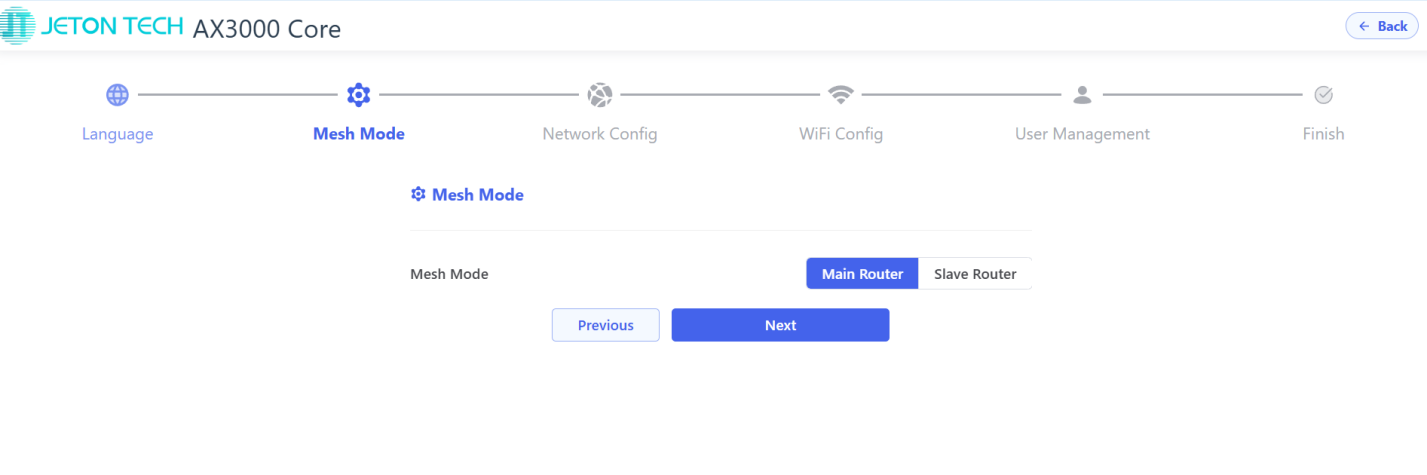
Also, if you have already finished the wizard, you can set it in [Advanced Mode] → [EasyMesh] → [Mesh Config].
For detailed steps, please check How to enter the Advanced mode.
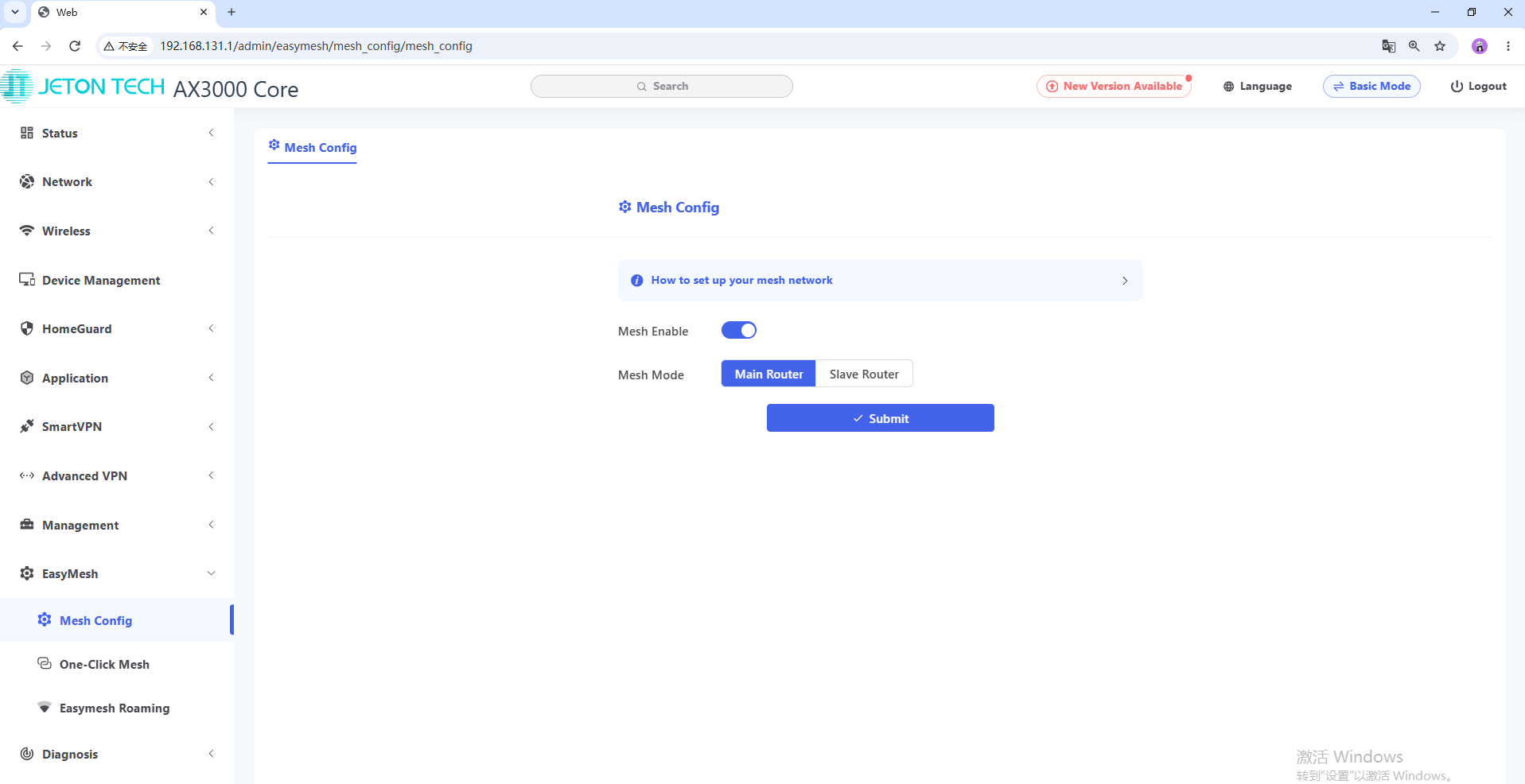
Step 2: Set up the satellite router.
This router receives the signal from the main router and rebroadcasts it further.
Reset the router; during its initial setup in the web interface, select Satellite Router in the Mesh setup menu.
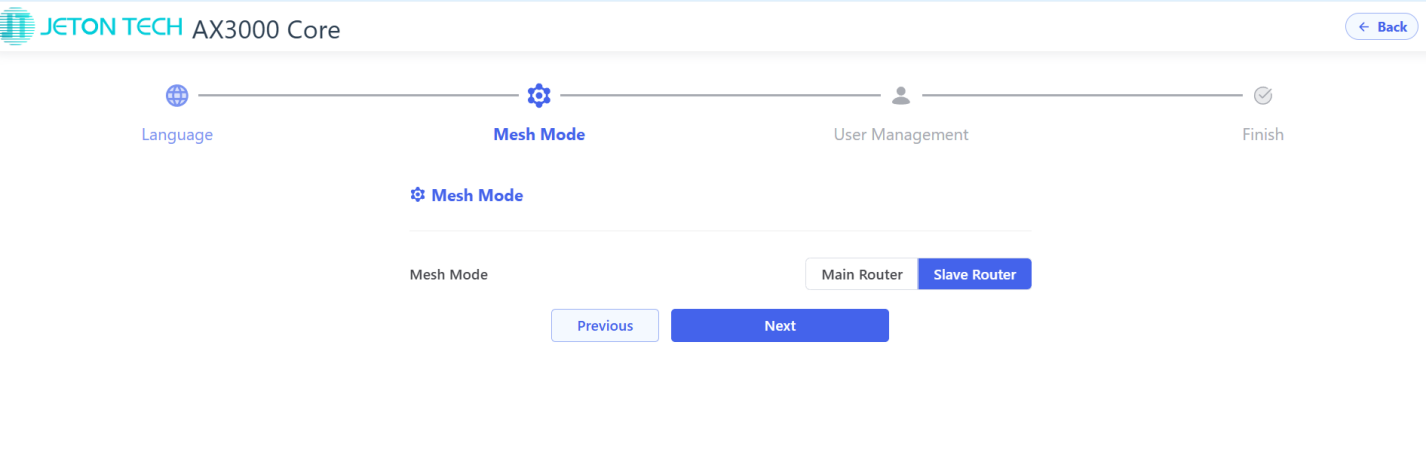
Leave the other parameters at their defaults and apply the settings.
Step 3: Connect the satellite router to the main router.
This is the final stage that joins the routers into one network. You can do it in one of two ways:
① Method 1 (Fastest — via the WPS/RST button):
Place the satellite router close to the main router (within 3 meters for a reliable connection) and power it on.
On the main router, press and hold the WPS/RST button for about 3 seconds until the WAN LED starts blinking rapidly. Do not hold it for more than 8 seconds, or the router will reset.
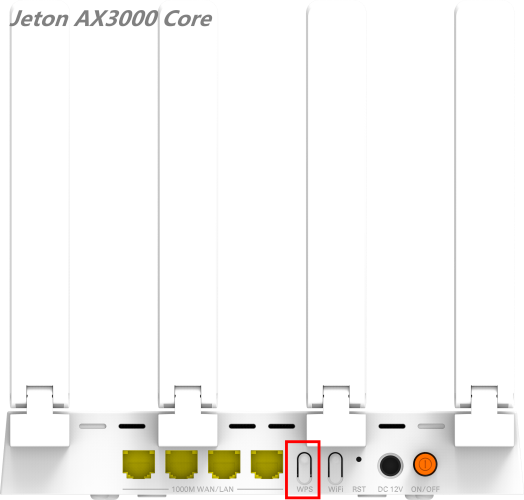
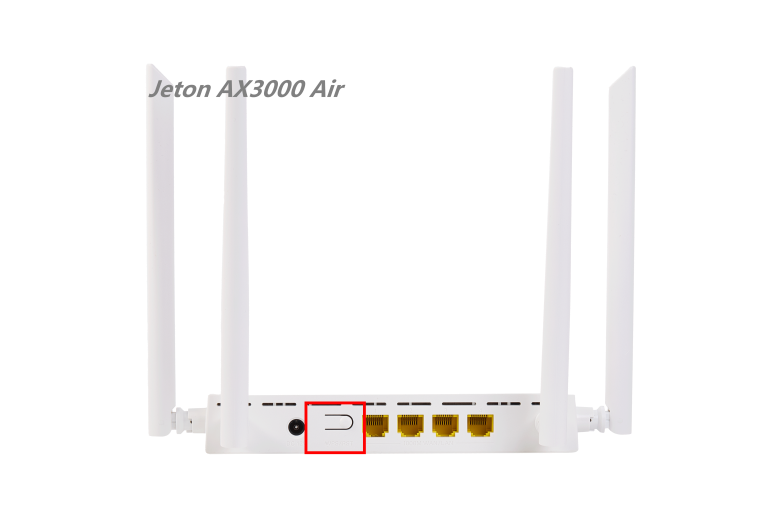
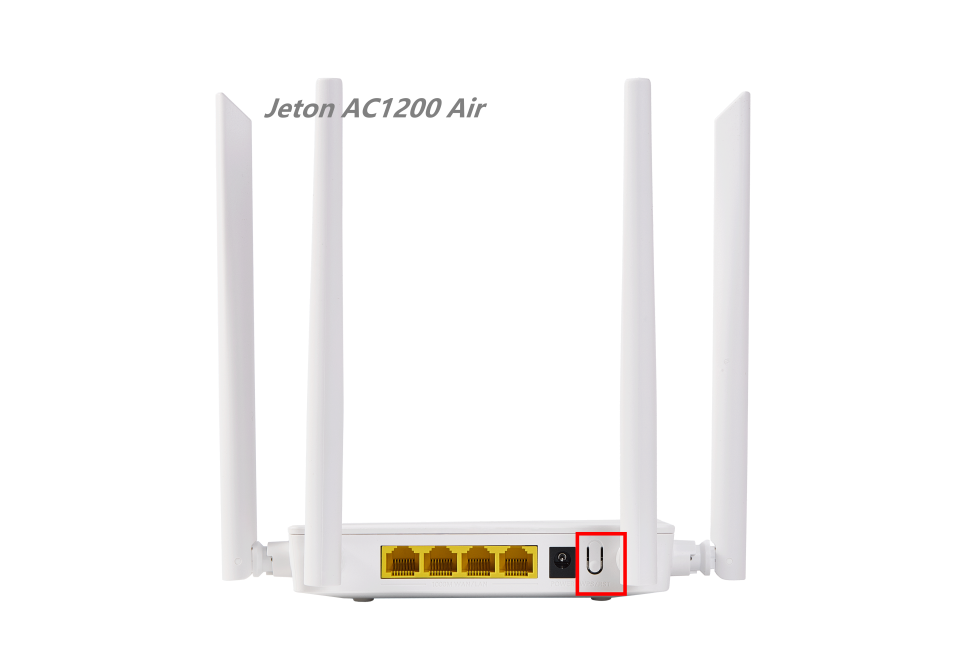
Do the same on the satellite router immediately (press and hold its WPS/RST button).
Wait for a couple of minutes. When the LEDs on both routers stay lit steadily, the connection is established.
② Method 2 (via an Ethernet cable):
Place the satellite router near the main router and power it on. Connect the two routers with an Ethernet cable.
Wait until the LED on the satellite router stays on without blinking — the Mesh connection is then complete.
Afterwards you can unplug the Ethernet cable — the routers will then link to each other over wireless signal. This method helps if pairing via Method 1 does not work.
Step 4: Verification and final placement
Now you can unplug the satellite router and move it to the spot where you need a stronger Wi-Fi signal. Make sure it stays within reliable range of the main router. When powered on at the new location, it will join the Mesh network automatically.
Important: the name and password of your Wi-Fi network stay the same as set on the main router. All devices in your home will switch between the routers automatically for the best signal.
If you run into any difficulties, make sure both routers run the latest firmware version (you can update it in the web interface).
For detailed steps of firmware updates, please check How to enable automatic firmware updates.