

Applicable Models
· Jeton AC1200 Air
· Jeton AC1300 Air, Jeton AC1300 Air BK
· Jeton AX3000 Air, Jeton AX3000 Air BK
· Jeton AX3000 Pro
· Jeton AX3000 Core
Overview
Night Mode turns off the LED indicators of the router. The router keeps working as usual, but no lights disturb your sleep — handy for bedrooms and nighttime.
Step 1
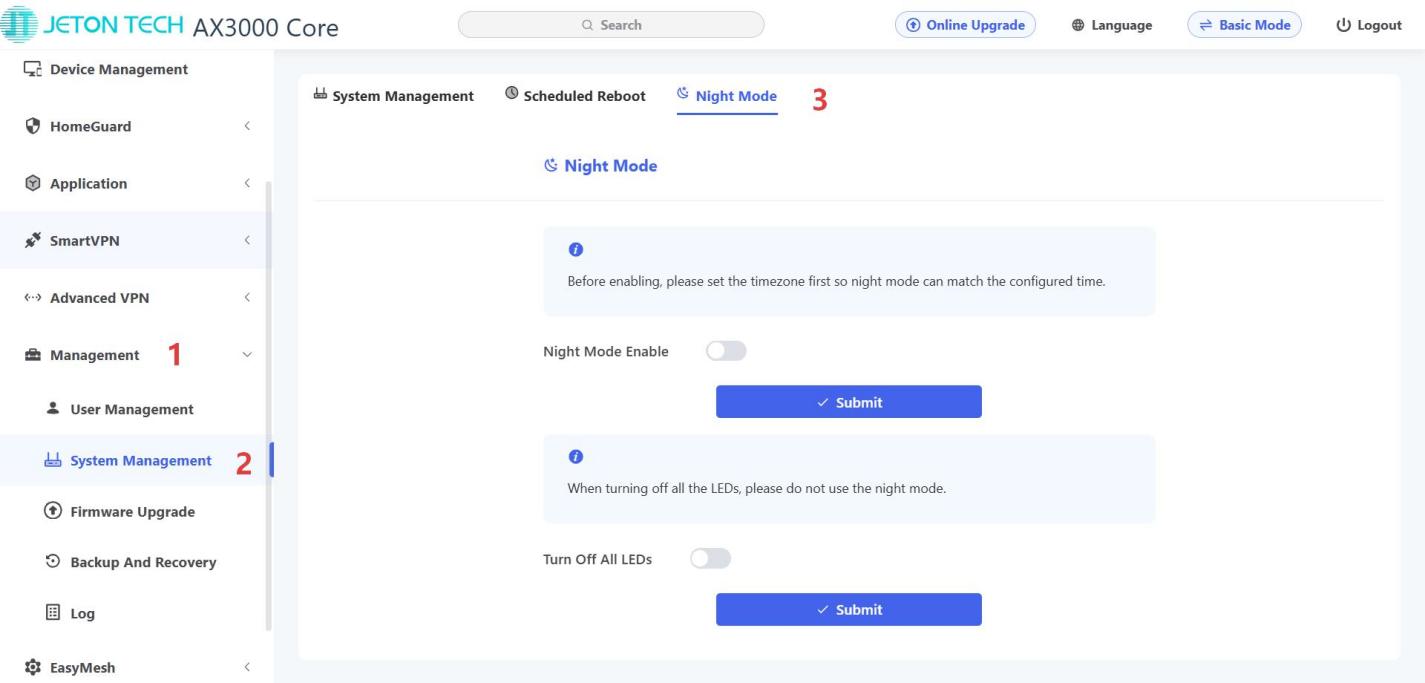
Go to [Advanced Mode].
For detailed steps, please check How to enter the Advanced mode.
Step 2
Open [Management] → [System Management].
Step 3
Go to the Night Mode tab.
Step 4
Configure the brightness of the LED indicators:
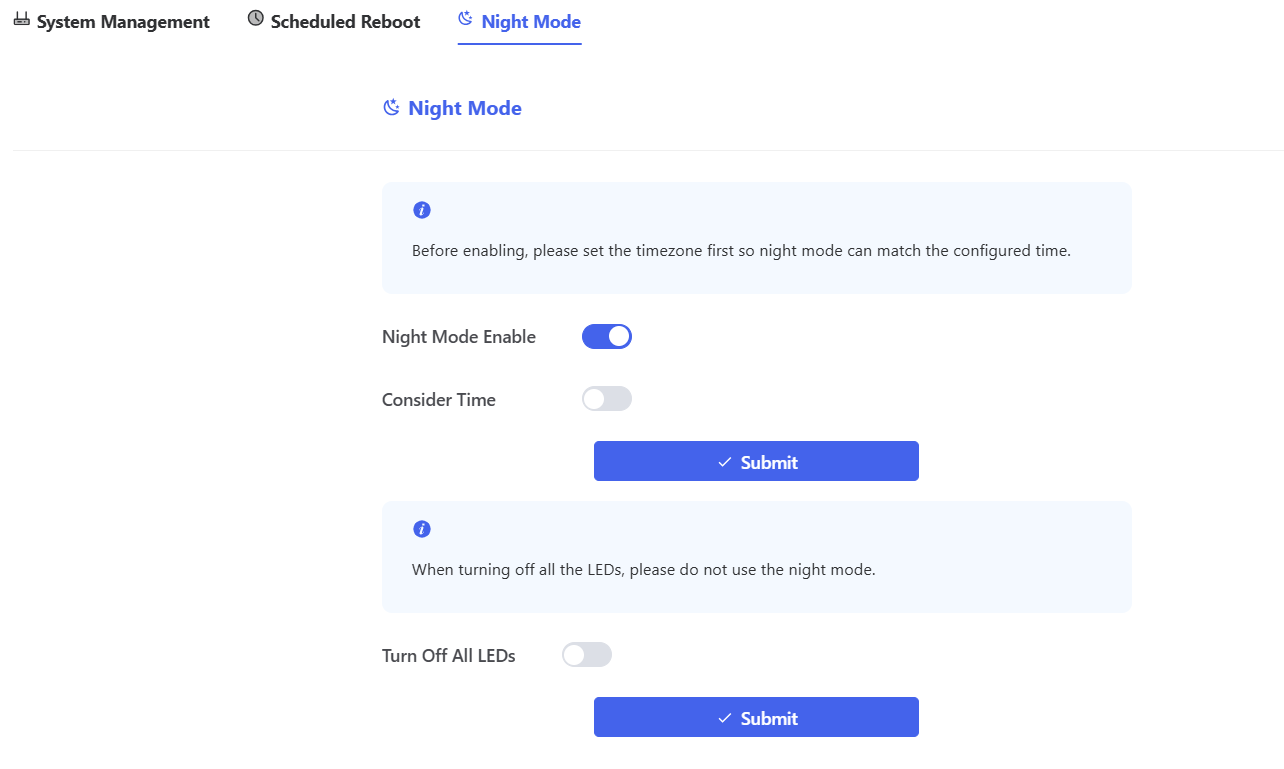
– Permanently dimmed brightness — turn on the Night Mode Enable switch. With the Consider Time toggle off, the LEDs stay dimmed all the time.
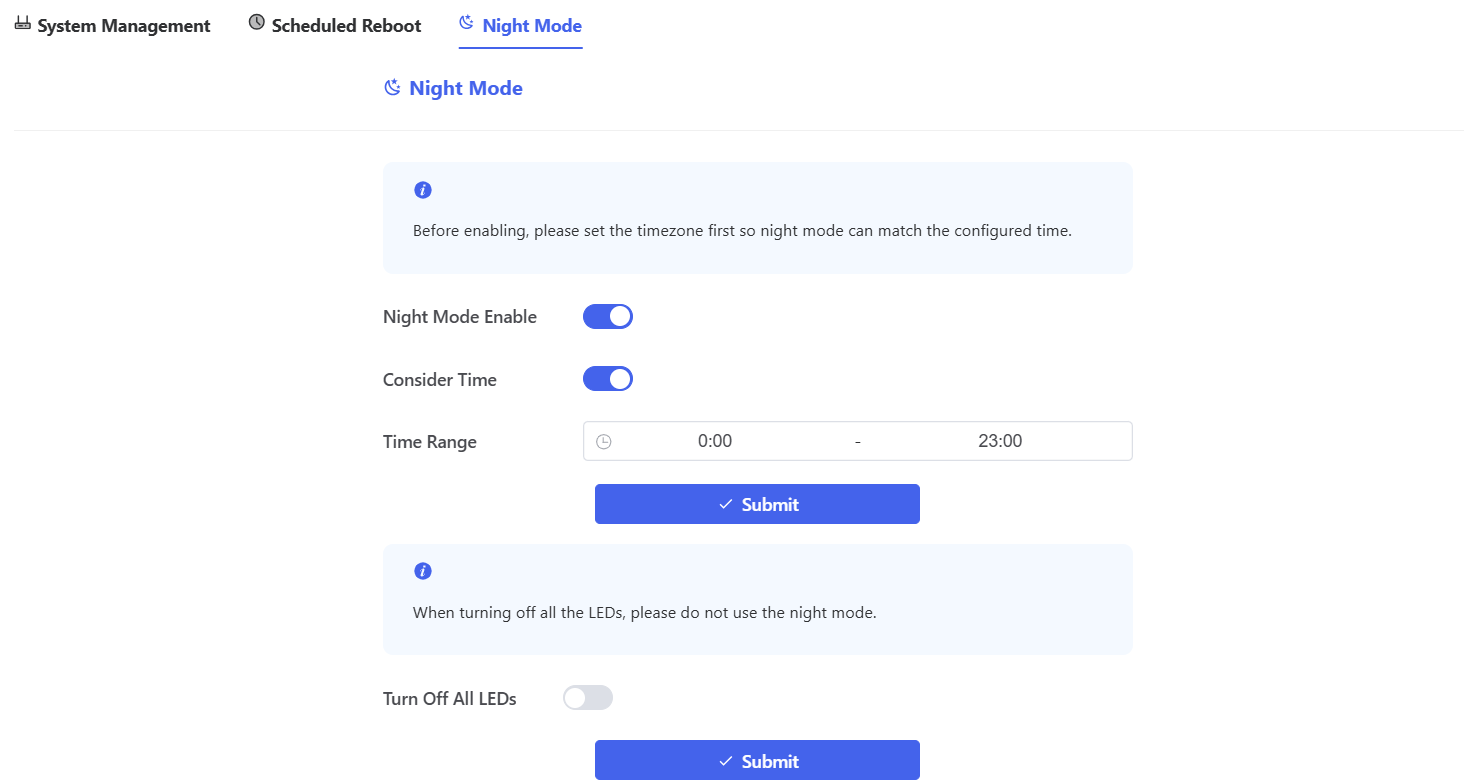
– Dimmed brightness on a schedule — turn on the Night Mode Enable switch, then enable the Consider Time toggle. After that you can set the time range during which the LED brightness should be reduced.
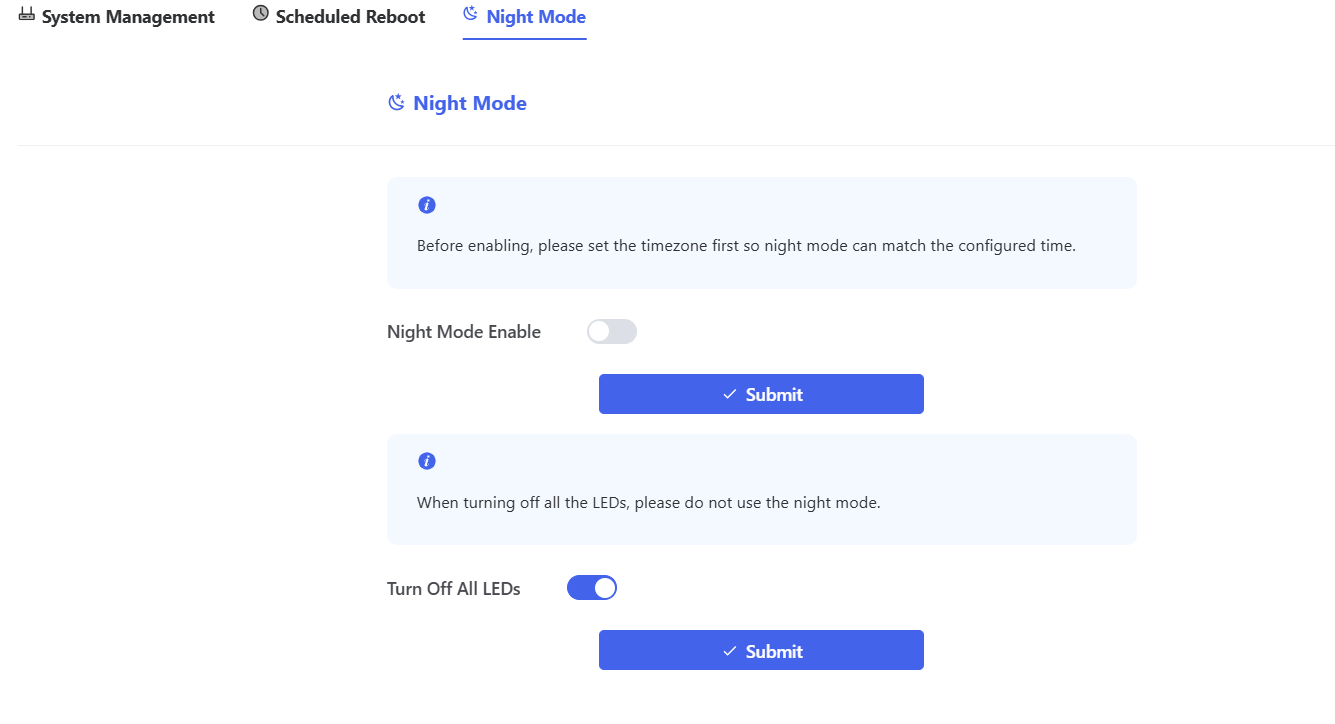
To turn off the LEDs directly, you can also enable the Turn Off All LEDs switch.
Step 5
Click Submit to apply your changes.