

Applicable Models
· Jeton AC1200 Air
· Jeton AC1300 Air, Jeton AC1300 Air BK
· Jeton AX3000 Air, Jeton AX3000 Air BK
· Jeton AX3000 Pro
· Jeton AX3000 Core
Overview
Smart QoS prioritizes traffic of selected services — games, websites, video, live streaming — over background downloads, so your game does not lag even when other devices load the network heavily. The additional speed limit keeps gameplay stable even on a congested channel.
To enable Smart QoS and game acceleration, follow these steps:
Step 1
Go to [Advanced Mode].
For detailed steps, please check How to enter the Advanced mode.
Step 2
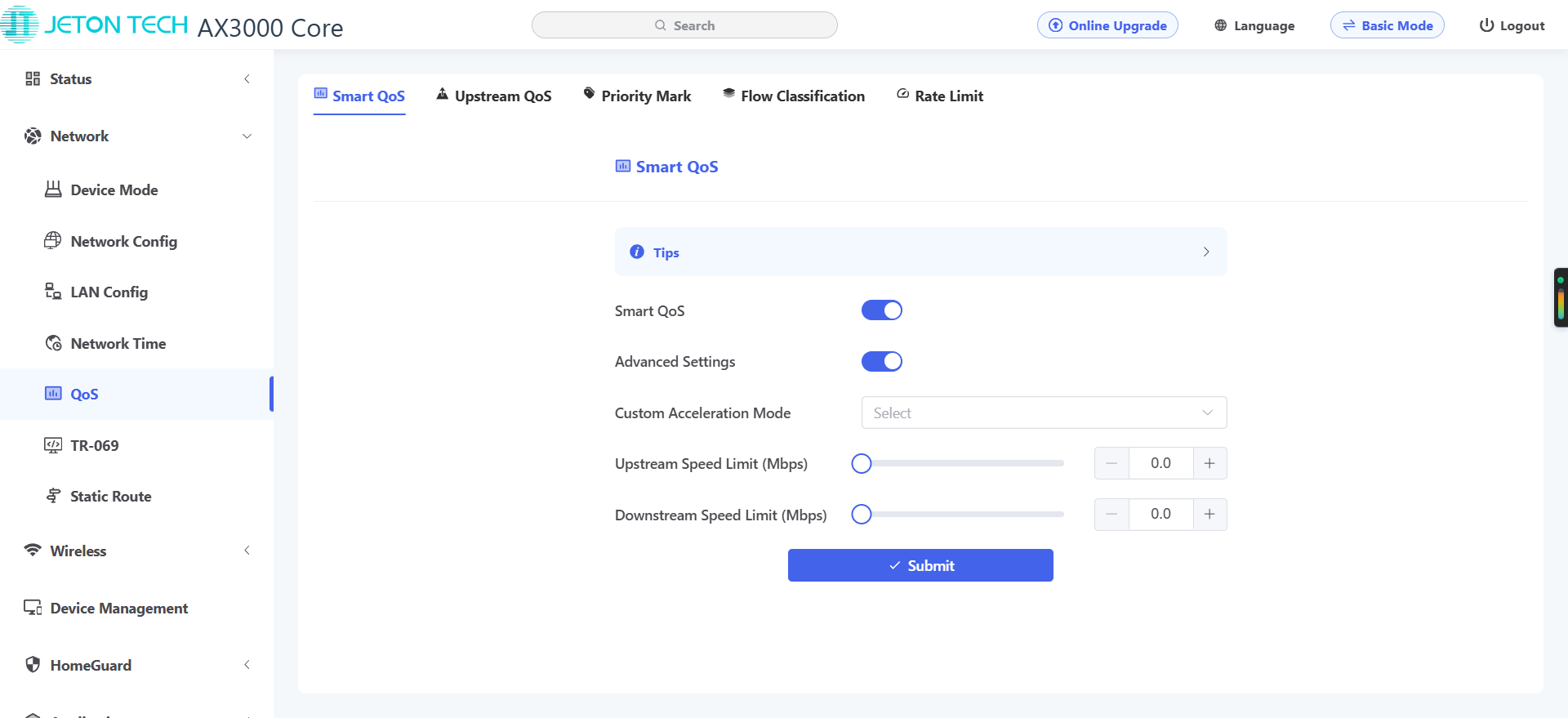
Navigate to [Network] → [QoS].
Step 3
Enable the Advanced Settings toggle.
Step 4
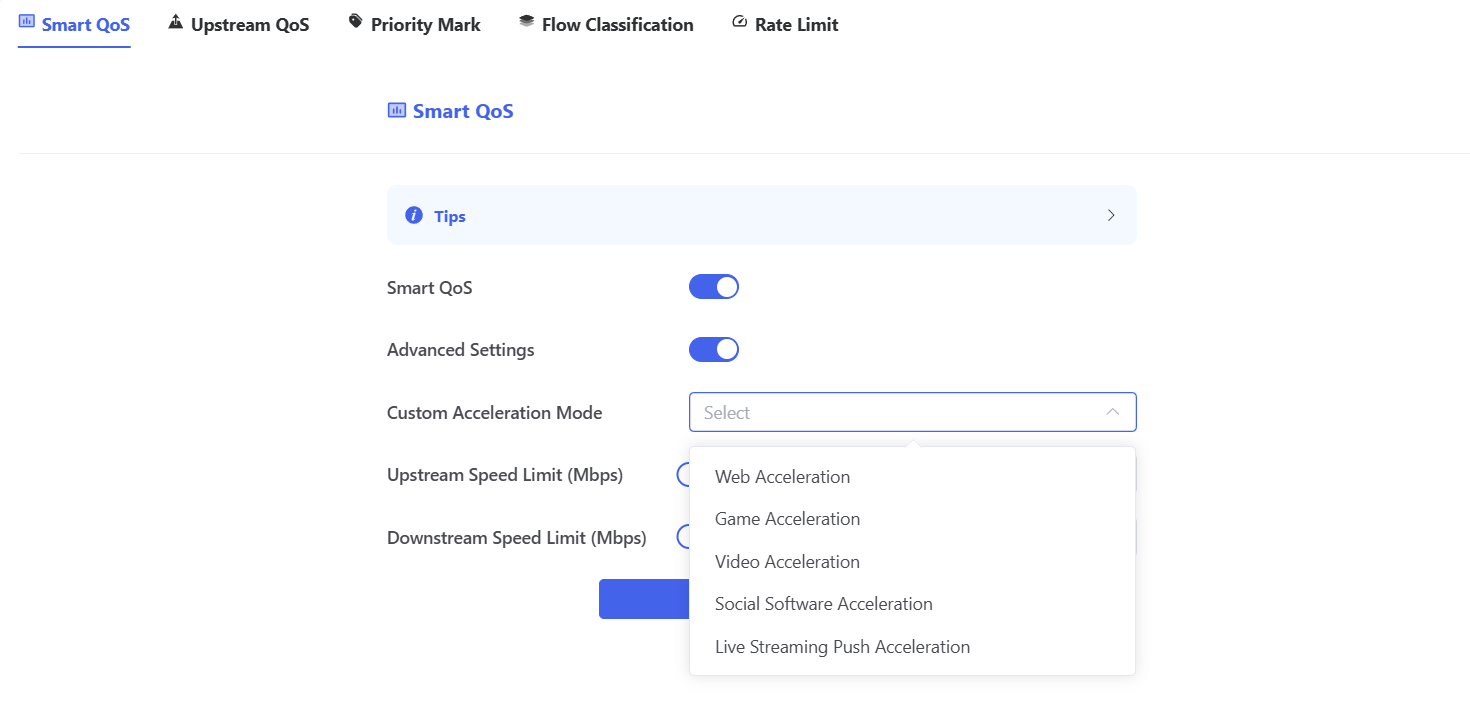
In Custom Acceleration mode, select the service you want to prioritize. Here we set gaming as the priority.
To keep the game stable even under a heavily loaded channel, set a speed limit. Recommended value: 70–80% of your ISP’s declared bandwidth. This reserves bandwidth for gaming traffic and prevents ping spikes.
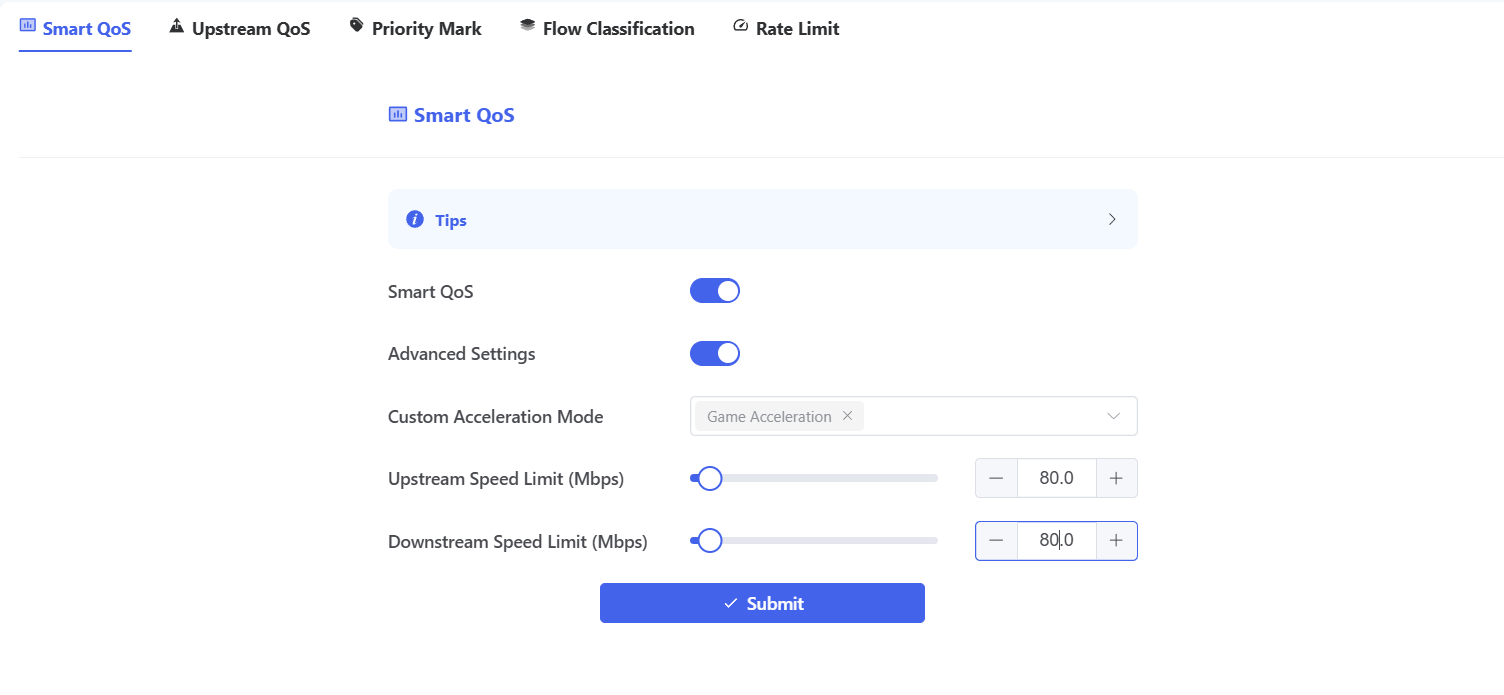
Note: Speed limiting will limit the speed for non-target protocols. So be careful when filling in the maximum uplink and downlink bandwidth of your Internet connection.