

Applicable Models
· Jeton AC1200 Air
· Jeton AC1300 Air, Jeton AC1300 Air BK
· Jeton AX3000 Air, Jeton AX3000 Air BK
· Jeton AX3000 Pro
· Jeton AX3000 Core
Overview
The automatic update feature keeps the router firmware up to date on its own: the router checks the update server and installs new versions when they are released. It is the easiest way to always have the latest fixes, security patches and improvements.
Step 1
Connect your device to the router via an Ethernet cable or Wi-Fi. It is recommended to connect your computer to the router via a network cable, which provides more stable connectivity.
Step 2
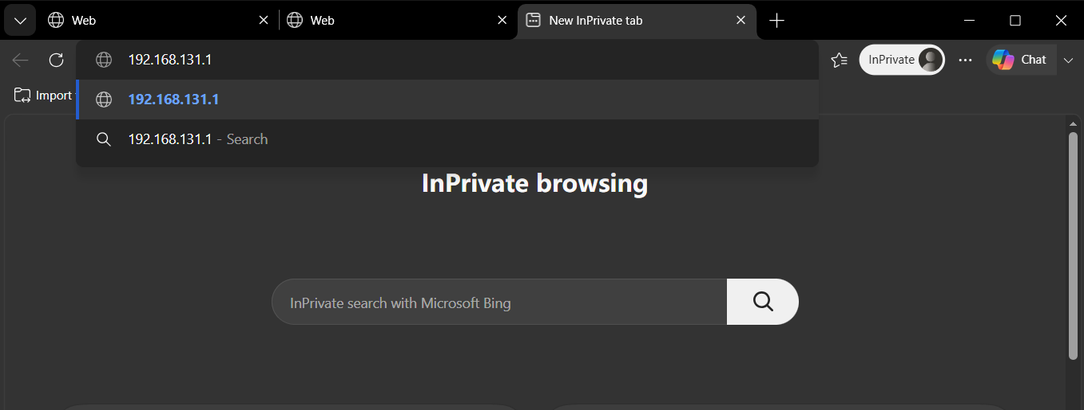
Open a browser (Microsoft Edge, Google Chrome, Safari, Firefox, Opera), enter the router’s IP address (192.168.131.1 by default) into the address bar, then press Enter.
Step 3
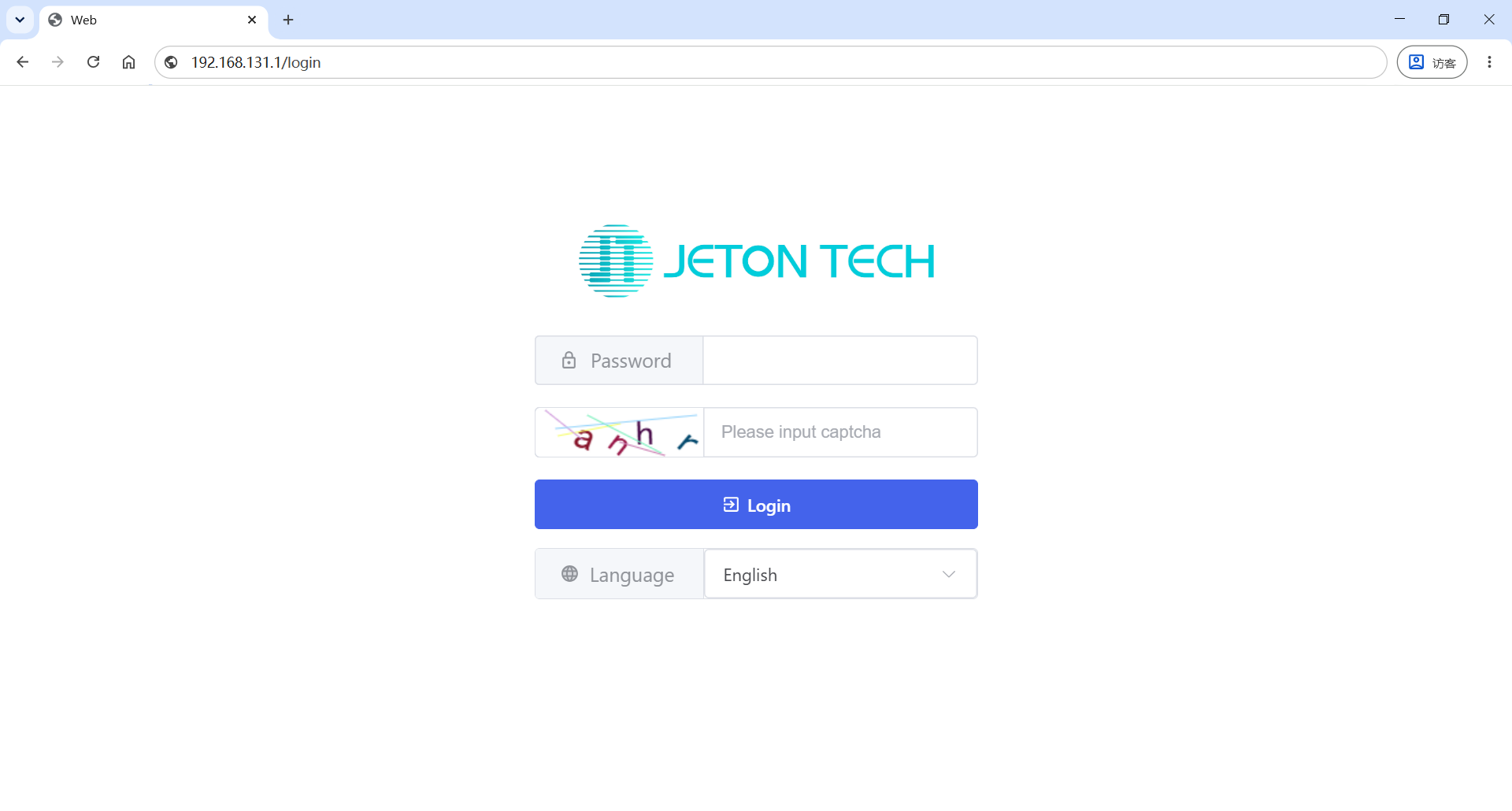
Enter the administrator password you set earlier and pass the CAPTCHA.
Step 4
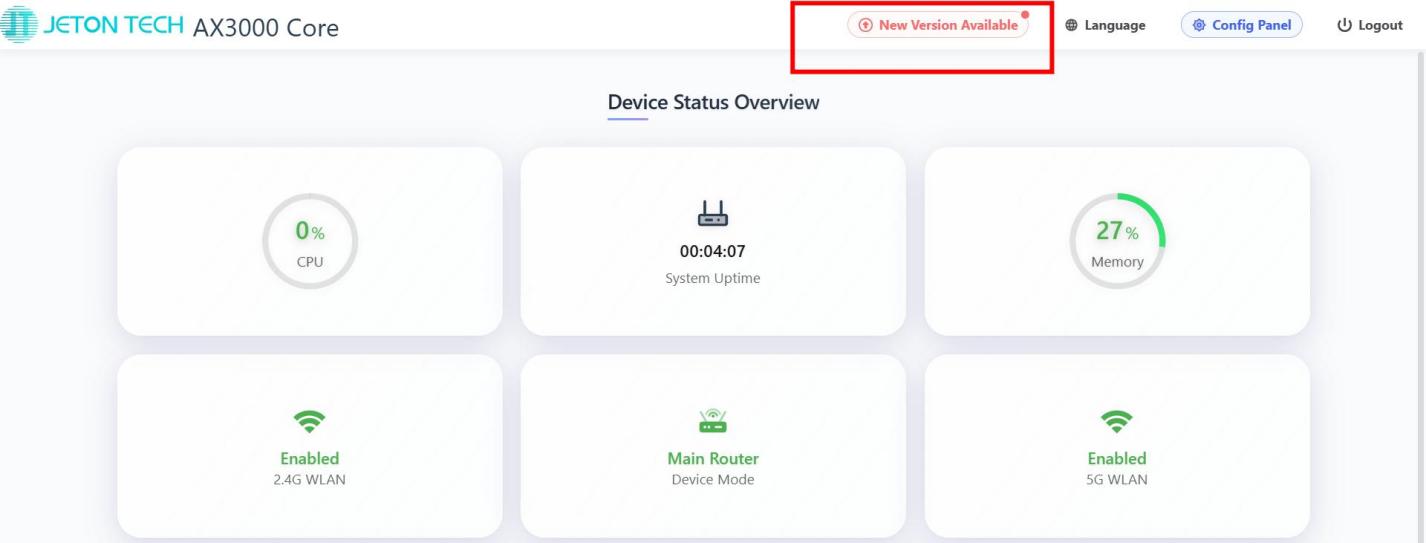
Click the A new version is available banner at the top of the screen.
Step 5
Click this [New Version Available] button and the router will navigate to the firmware upgrade page.
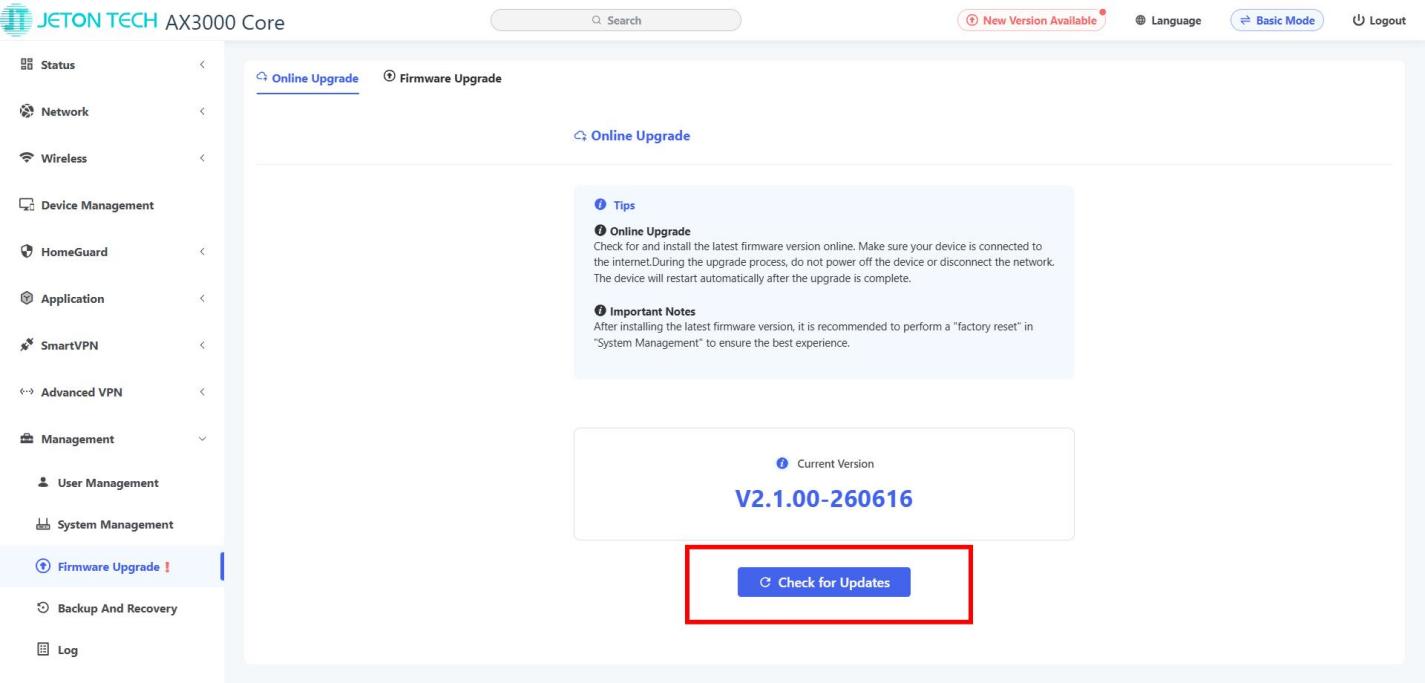
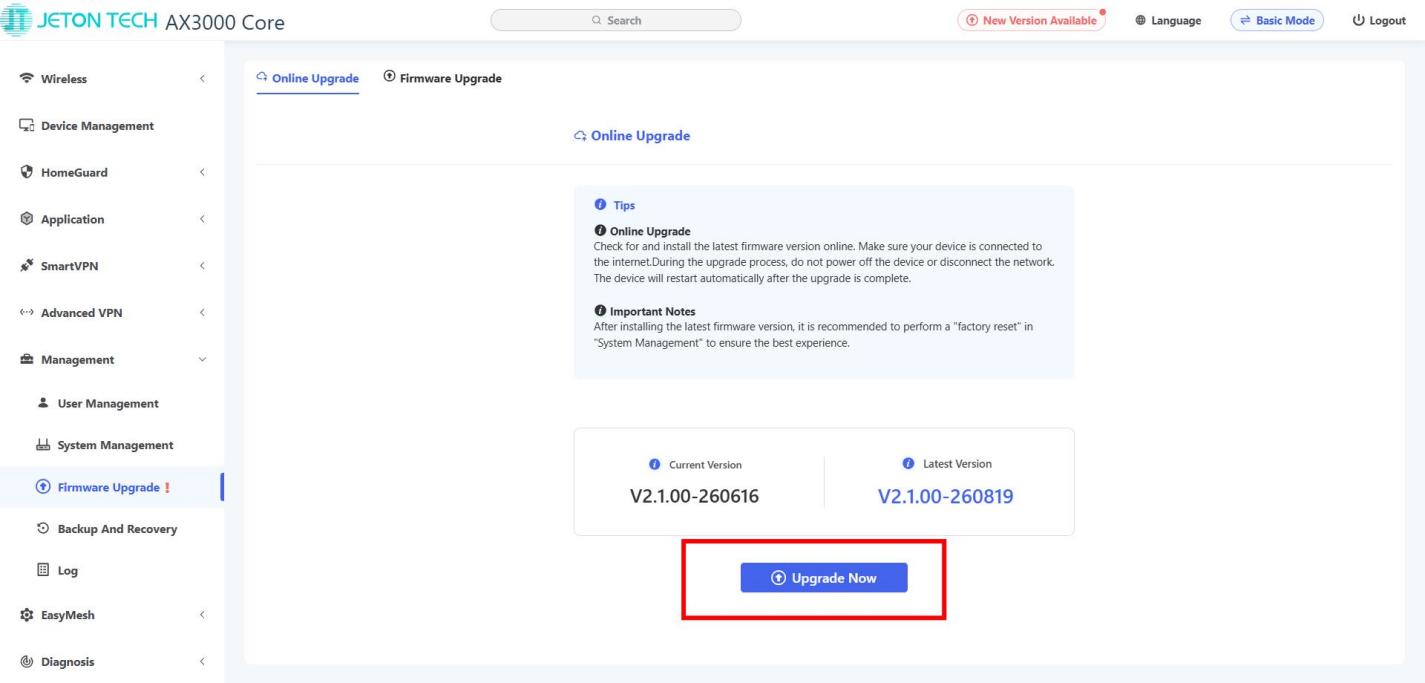
Click Check for Updates → Update and wait for the process to complete. The router may reboot.
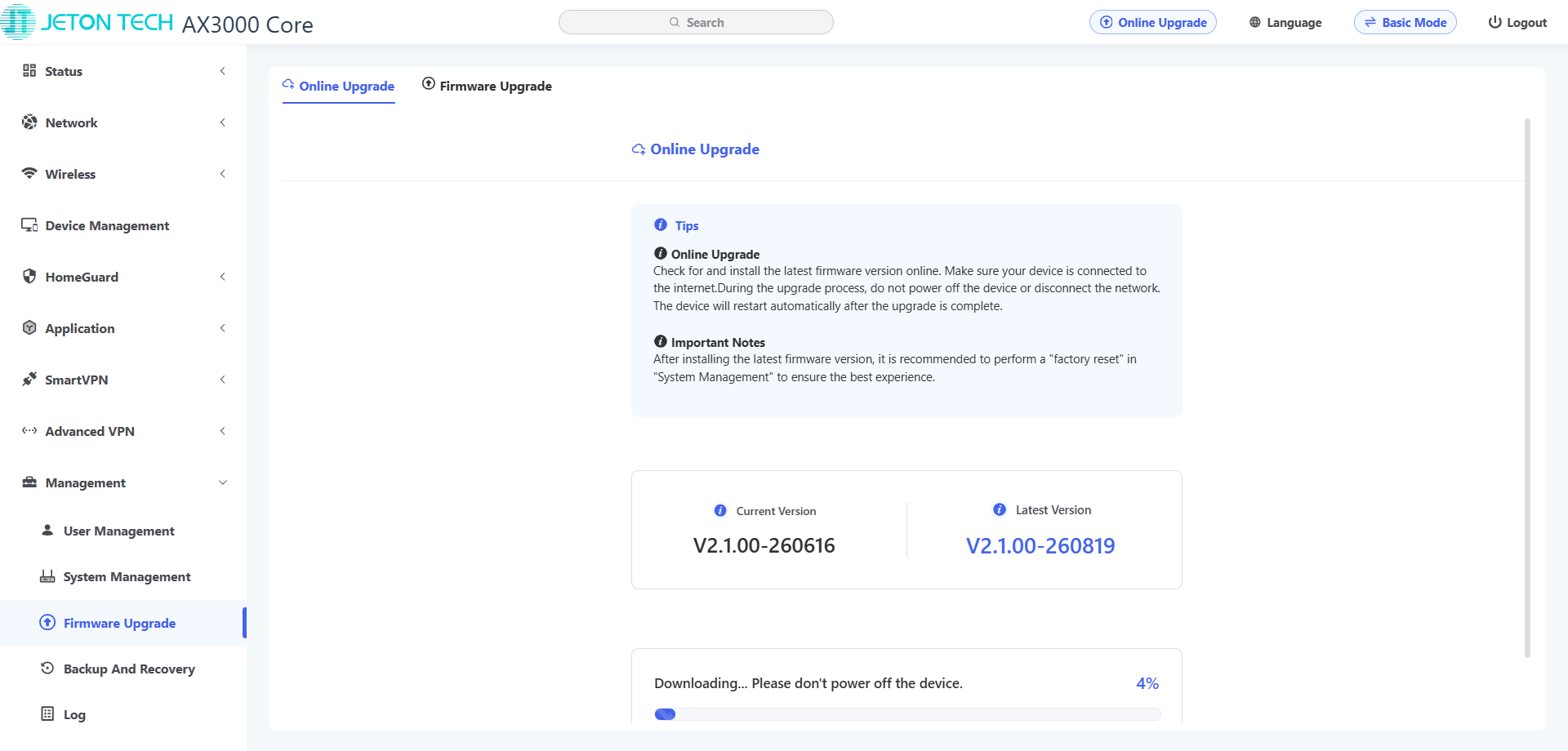
Step 6
Once the upgrade is complete, you will need to re-enter your login password.
Note:
It is recommended to perform a factory reset to ensure that the new features and pages take effect.
Don’t manually reset to factory defaults during the upgrade process.