
Applicable Models
· Jeton AC1200 Air
· Jeton AC1300 Air, Jeton AC1300 Air BK
· Jeton AX3000 Air, Jeton AX3000 Air BK
· Jeton AX3000 Pro
· Jeton AX3000 Core
Overview
The system log records the router’s events: connection attempts, errors, configuration changes and more; the kernel log contains low-level system messages for deep technical diagnostics. Exporting these logs helps to find the cause of connection problems — most issues can be diagnosed right from the log, and the support engineers may ask for these files when a regular system log is not enough.
Step 1
Go to [Advanced Mode].
For detailed steps, please check How to enter the Advanced mode.
Step 2
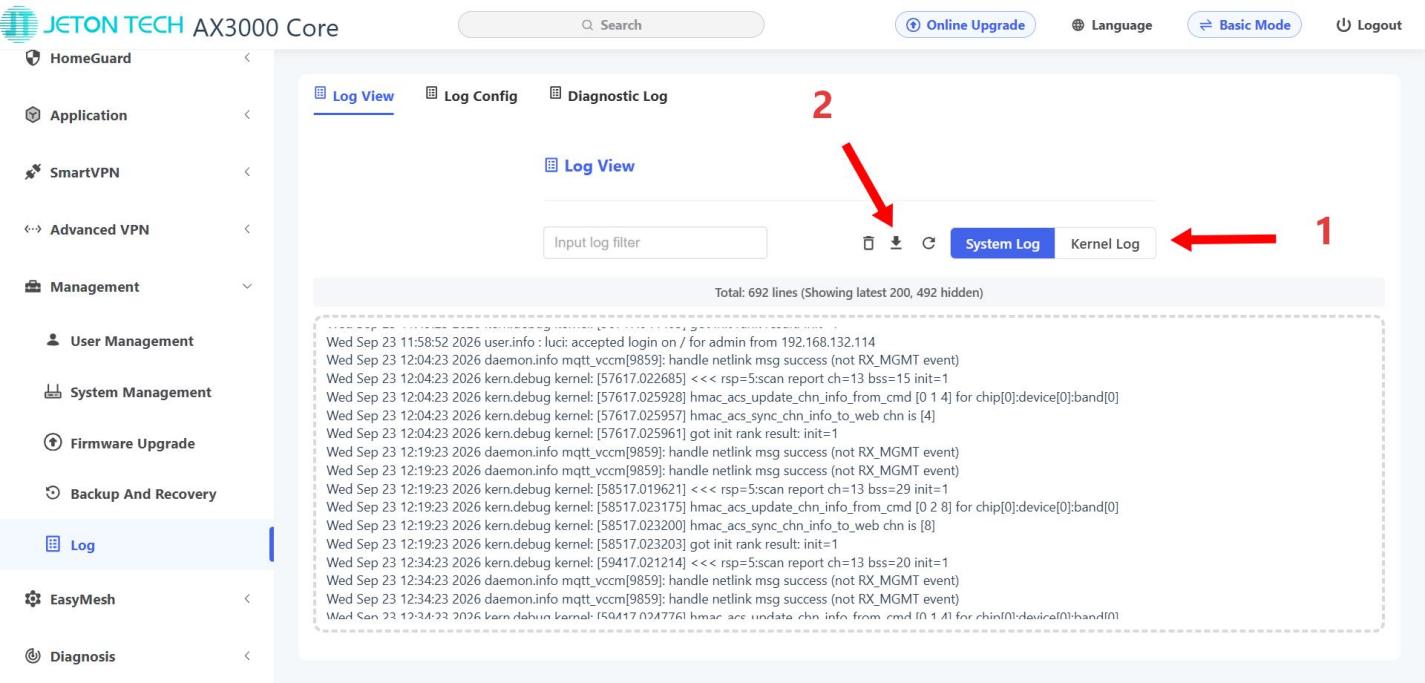
Open [Management] → [Log] → [Log View]
Choose System Log or Kernel Log, and click the download button. The log will be downloaded automatically.
Step 3 Warning
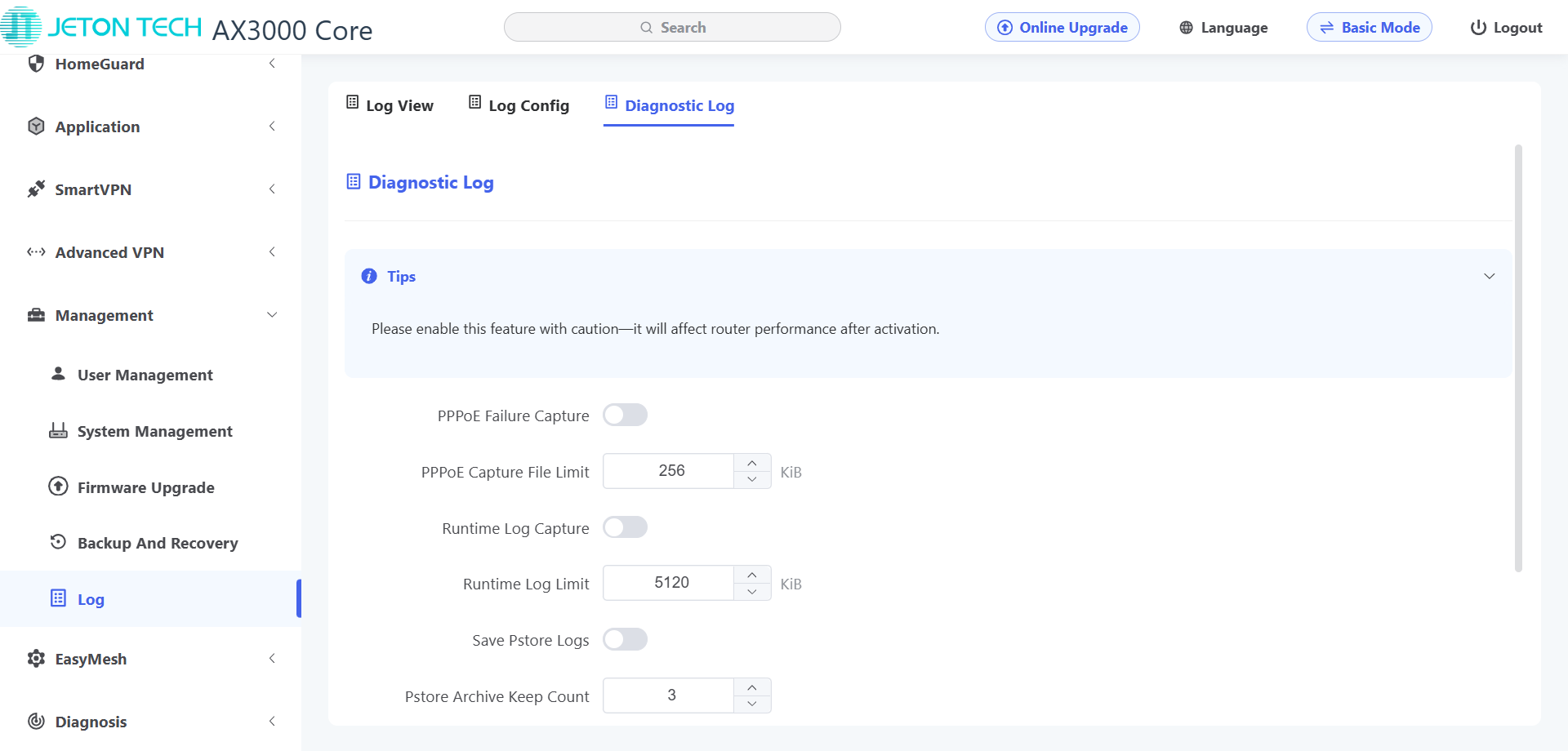
Do not change any settings in [Diagnostic Log].
These functions must be used under the guidance of Jeton Tech engineers when your router encounters rare bugs.
Otherwise, arbitrarily modifying and applying the parameters under these two tabs may cause the router to malfunction and stop working properly.