

Applicable Models
· Jeton AC1200 Air
· Jeton AC1300 Air, Jeton AC1300 Air BK
· Jeton AX3000 Air, Jeton AX3000 Air BK
· Jeton AX3000 Pro
· Jeton AX3000 Core
Overview
A factory reset erases all user settings and returns the router to its default state. Use it when the router is misconfigured, when the web login password is forgotten, or when you want to start the setup from scratch.
Reset the router via WEB
Step 1
Go to [Advanced Mode].
For detailed steps, please check How to enter the Advanced mode.
Step 2
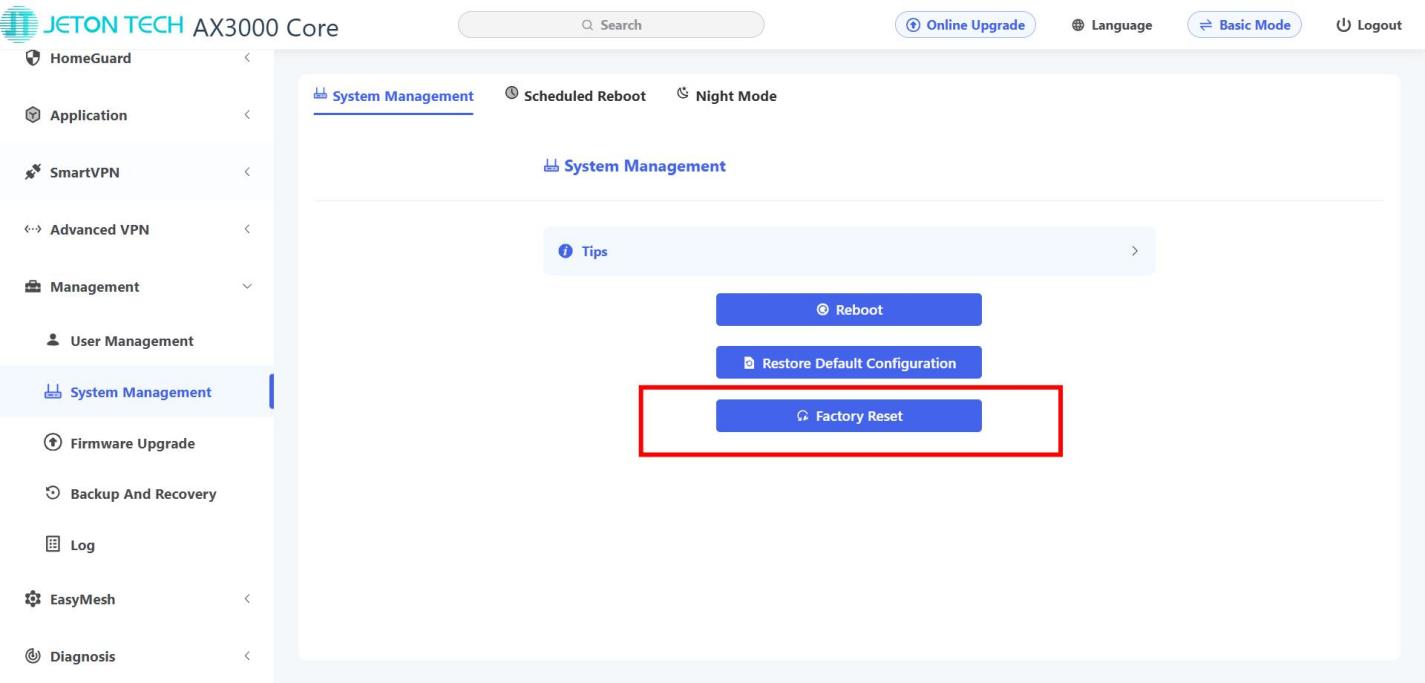
Open [Management] → [System Management].
Step 3
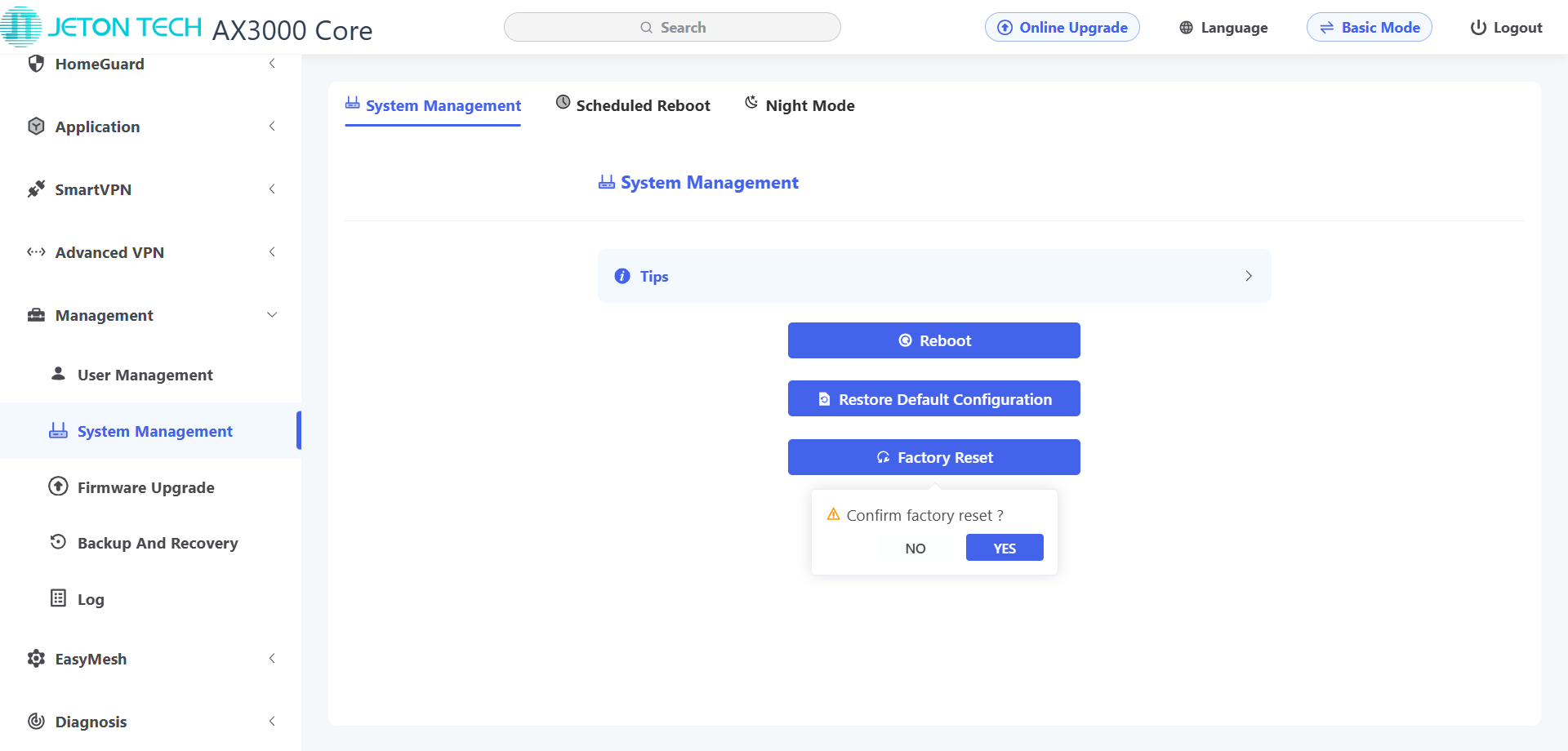
Click Factory Reset and confirm with YES.
The router will automatically reset its settings and reboot.
Reset the router via buttons
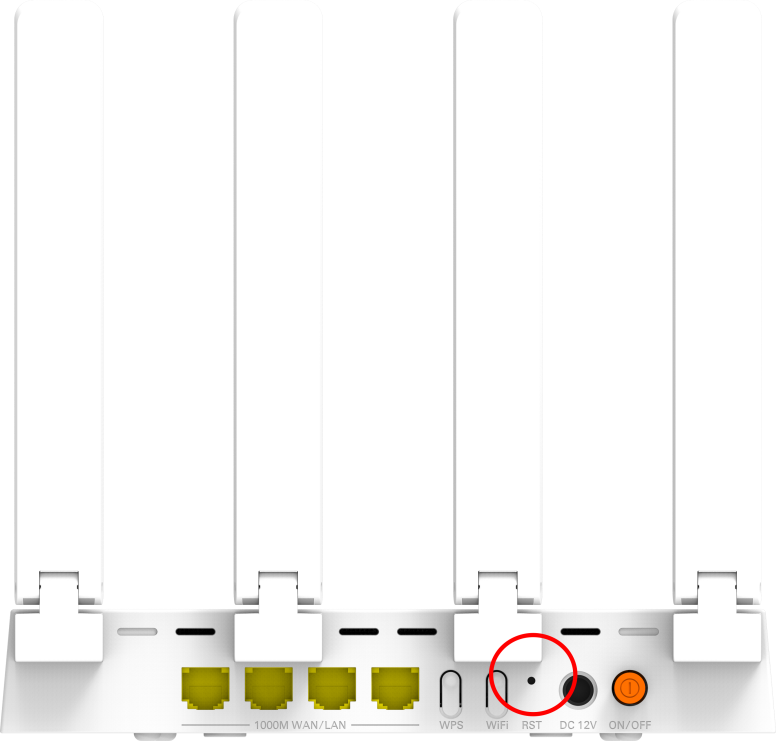
There is a Reset button on the back of the router, labeled “RST”.
For AX3000 Core and AX3000 Pro models, the RST button is shown in the figure below:
For AC1200 Air, AC1300 Air, AC1300 Air (BK), AX3000 Air, and AX3000 Air (BK) models, the RST/WPS button is shown in the figure below:
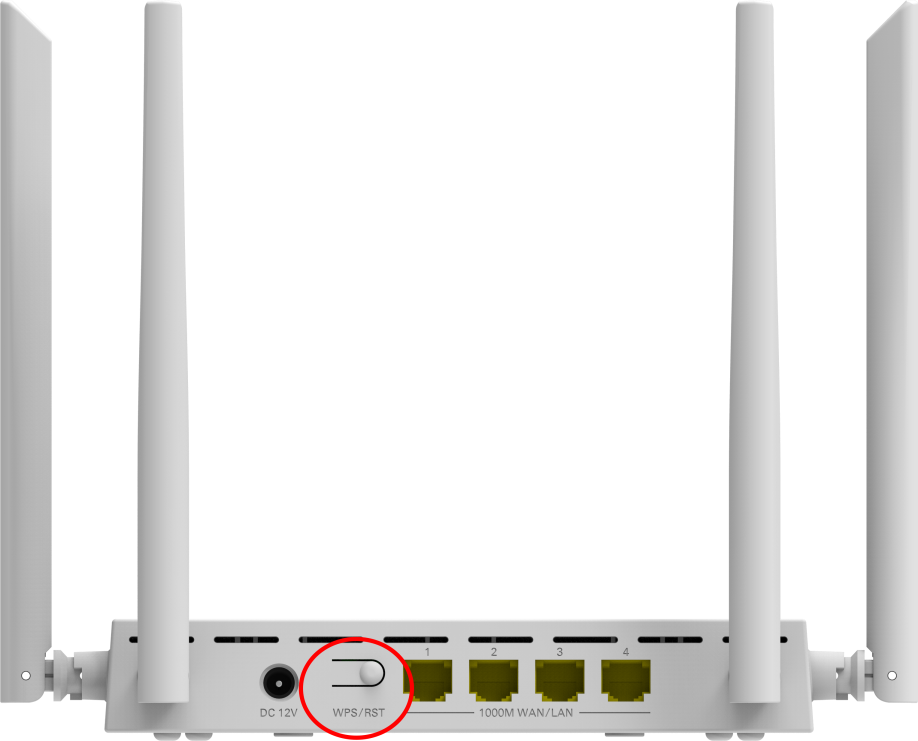
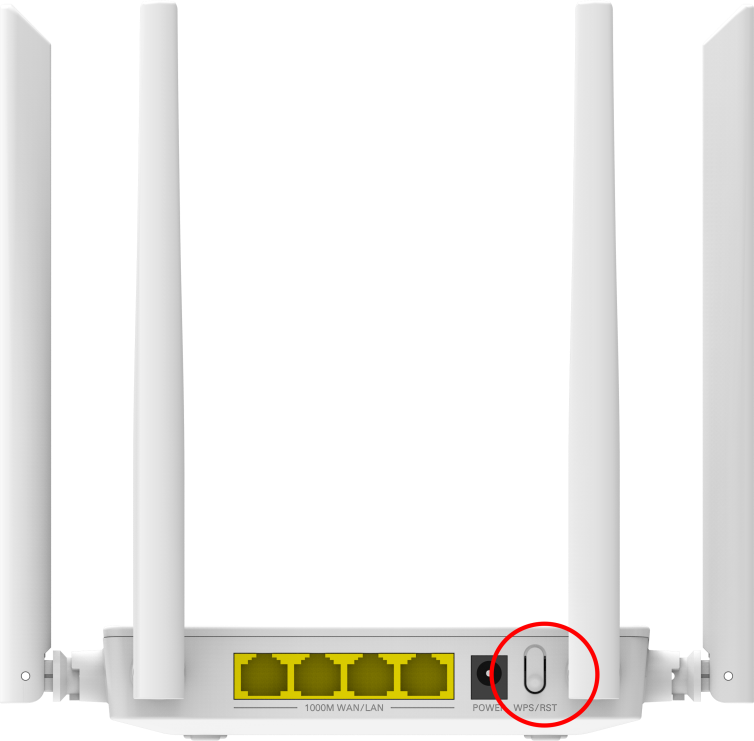
You can also press and hold this button for about 8 seconds to manually restore the factory settings.
Indications after a successful factory reset
All router indicator lights will first turn off, then light up one by one. When the WAN light changes from blinking to steady on, it indicates that the factory reset has been successful.